
How to ensure (call) notifications come through correctly on iOS
To make sure you never miss an important update, it’s essential to verify that notifications are properly enabled for the Mobile One app on your iPhone. Below is a step-by-step guide to help you configure notification settings and make sure they are not silenced, even when Focus mode is turned on.
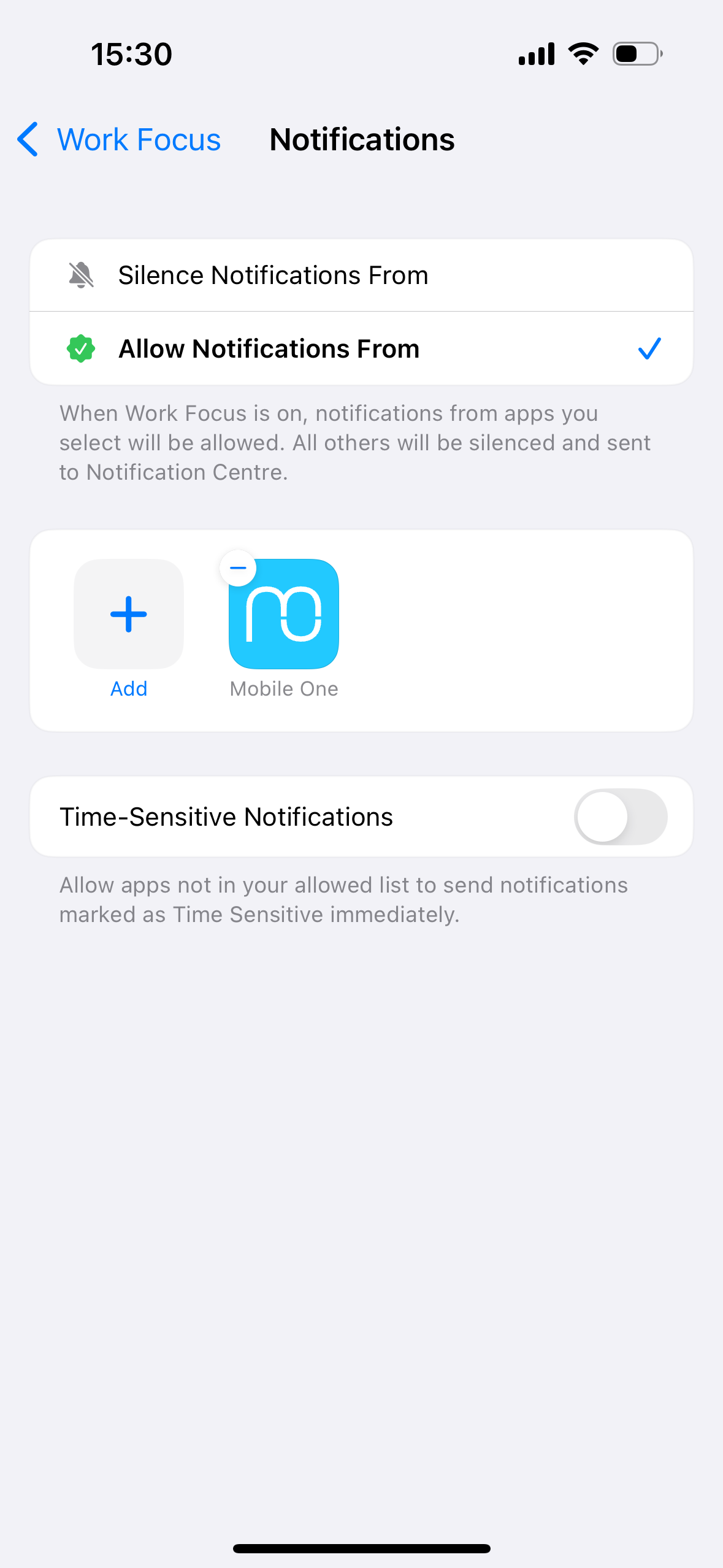
Add Mobile One to Allowed Apps in Focus Mode#
If you're using Focus modes like Do Not Disturb, Work, or Personal, notifications from Mobile One can be blocked by default. Follow these steps to ensure (call) notifications work correctly:
- Open Settings > Focus.
- Choose the Focus mode(s) you use regularly (e.g., Do Not Disturb)
- Tap Apps under Allowed Notifications.
- Tap Add App, then select Mobile One from the list.
- Confirm changes and repeat for other Focus modes you use.
Alternatively, if under "People" you allow calls from everybody, calls should also come through.
Check iOS Notification Settings#
Make sure Mobile One is allowed to send notifications:
-
Open the Settings app on your iPhone.
-
Tap Notifications.
-
Scroll down and select Mobile One.
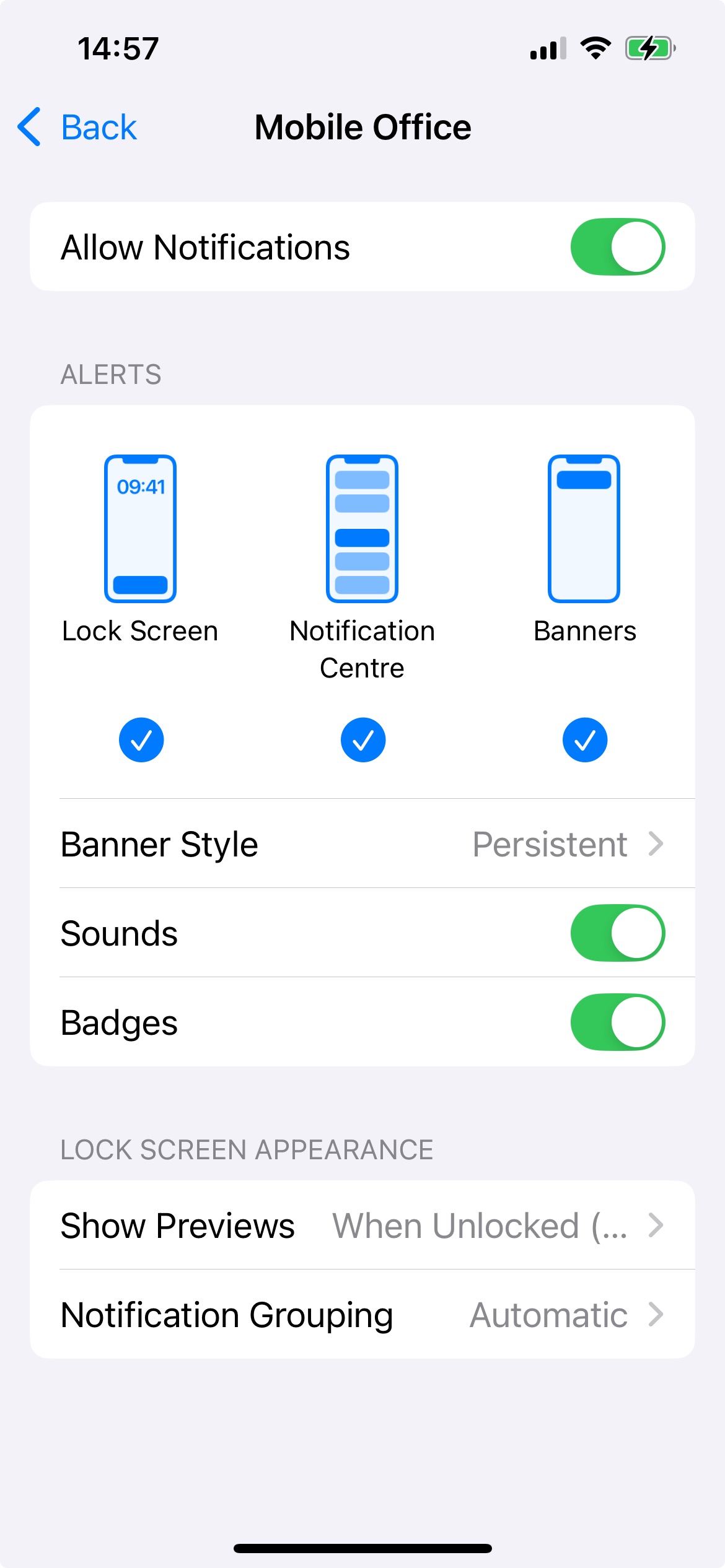
Ensure the following are enabled:
-
Allow Notifications
-
Immediate Delivery (if available)
-
Alerts in Lock Screen, Notification Center, and Banners
-
Sounds (toggle ON)
-
Badges (optional)
-
Test Notifications#
To confirm everything is working:
- Ask a colleague to initiate an action (like a chat or call) that would normally trigger a notification.
- Verify you receive the alert promptly on your lock screen or banner.