
Top 3 most used Mobile Connect configurations
Here are the top 5 most used configurations by our Mobile Connect customers that you - as a Mobile Connect admin - should know about:
1. Auto Close Interactions#
By default, a user will have to click "close interaction" at the bottom of the screen after hanging up call. You will not be able to receive new calls unless you have closed the previous interaction. If you - on Mobile Connect - don't want this behavior, go to admin console -> Interactions -> Auto Close Interactions. If this option is enabled, your interactions will automatically be closed after hanging up.
2. Data attributes#
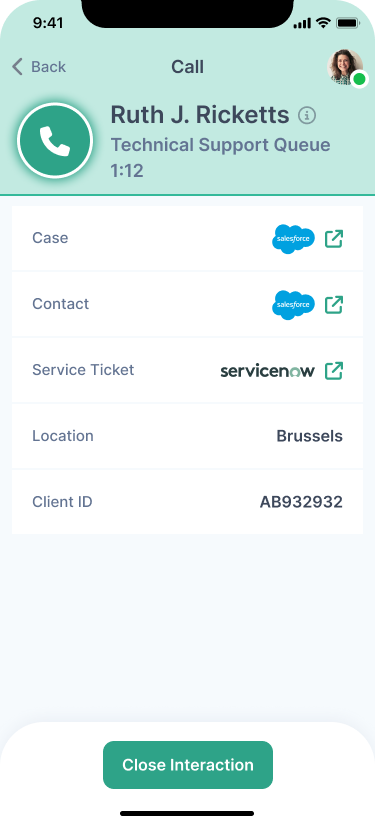
Inside your Amazon Connect flow, it is possible to add 'Data attributes' to an interaction. These are variables that can offer more information about the interaction and can be displayed within Mobile Connect. To display these data attributes for each interaction, go to admin console -> Data Controls -> Interaction Metadata.
There you can list the data attributes you want to display. Make sure that they keys match the data keys that you have configured in Amazon Connect.
3. CRM Integrations#
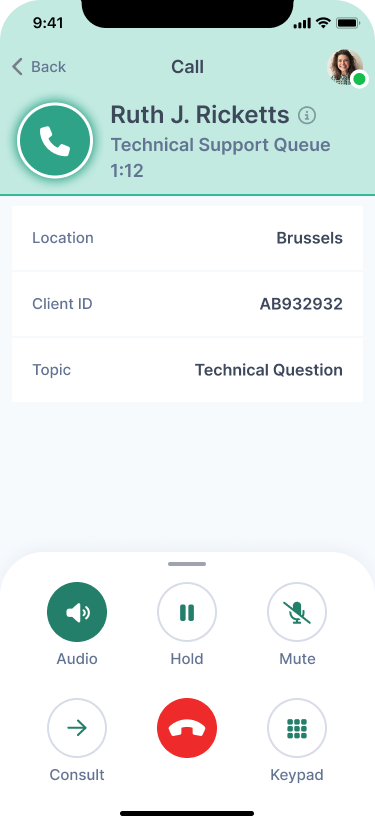
In Mobile Connect, you can allow your users to navigate to other applications such as your CRM or any other mobile app or website you'd like to refer to. The link (app URL or website URL) should be available in your Amazon Connect flow as a data attribute. Once you have configured this URL as a data attribute, you can configure it to be displayed within the app. To configure, go to admin console -> Data Controls -> Interaction CRM buttons.
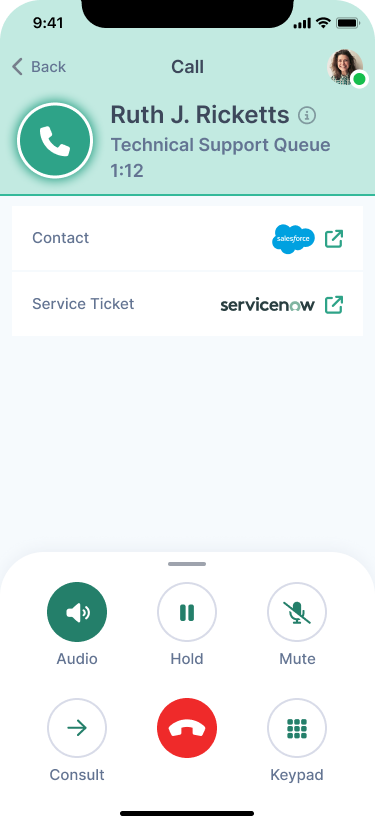
Below is an example that links to the Salesforce app (Case & Contact) and ServiceNow (ticket).
Questions?#
If you have any further questions about our admin console, don't hesitate to contact us via the "contact" button in the header of the help center. We'd be happy to walk you through the admin console and the available configurations in Mobile Connect.