Getting Started
Discover how to start your 10-day free trial via AWS marketplace and set up Mobile Connect.
Activating your 10 Day Free Trial
Thanks for your interest in Mobile Connect for Amazon Connect! The below steps outline in detail how you can set up your organization and get started with Mobile Connect.
1. Subscribe to Mobile Connect on AWS marketplace
Mobile Connect is available via the AWS marketplace. First of all, activate your subscription which will start your 10-day free trial.
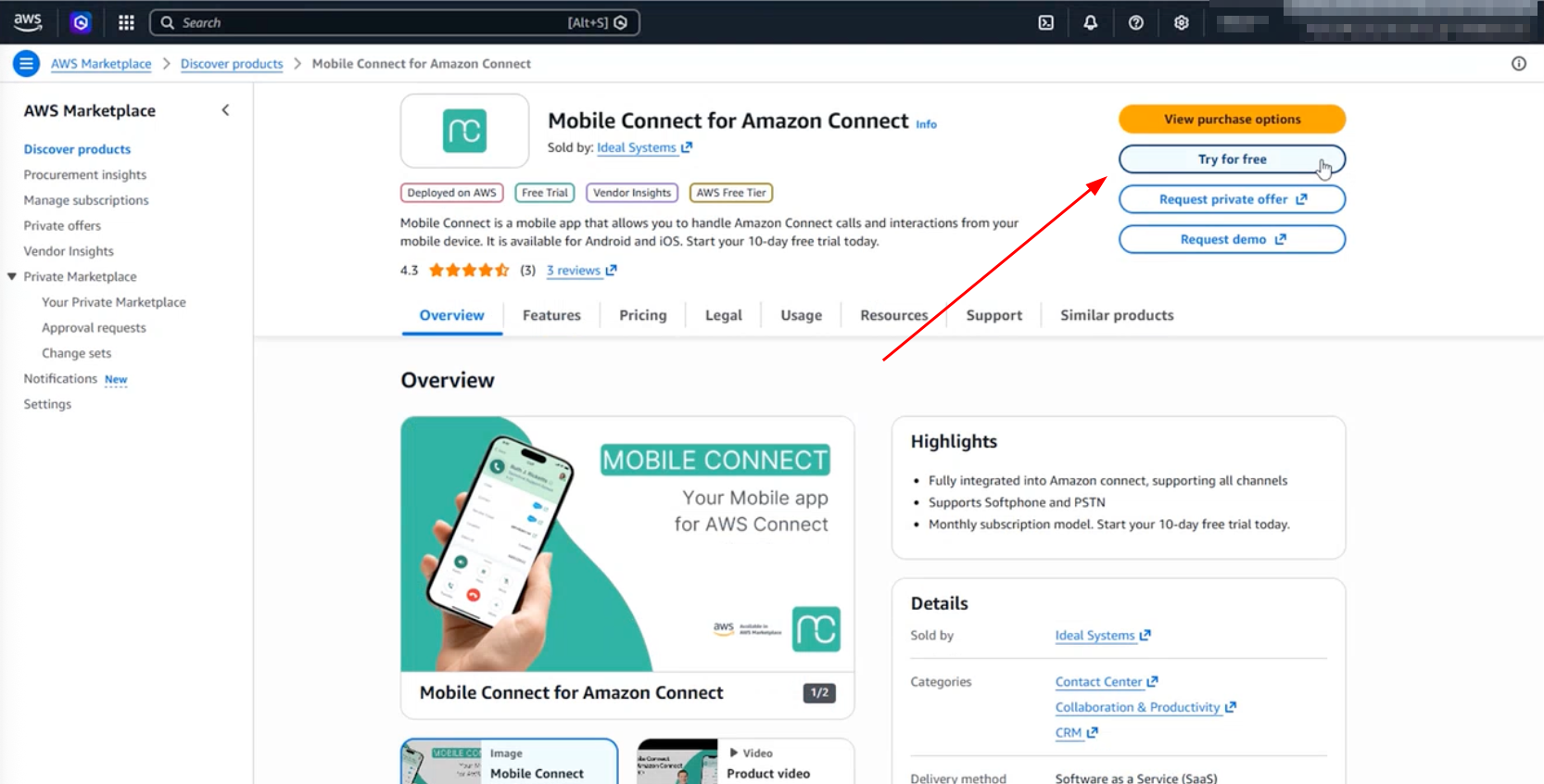
1) login with your AWS account and navigate to the Mobile Connect product page on AWS marketplace:
2) At the top right, click "view purchase options" or "Try for free".
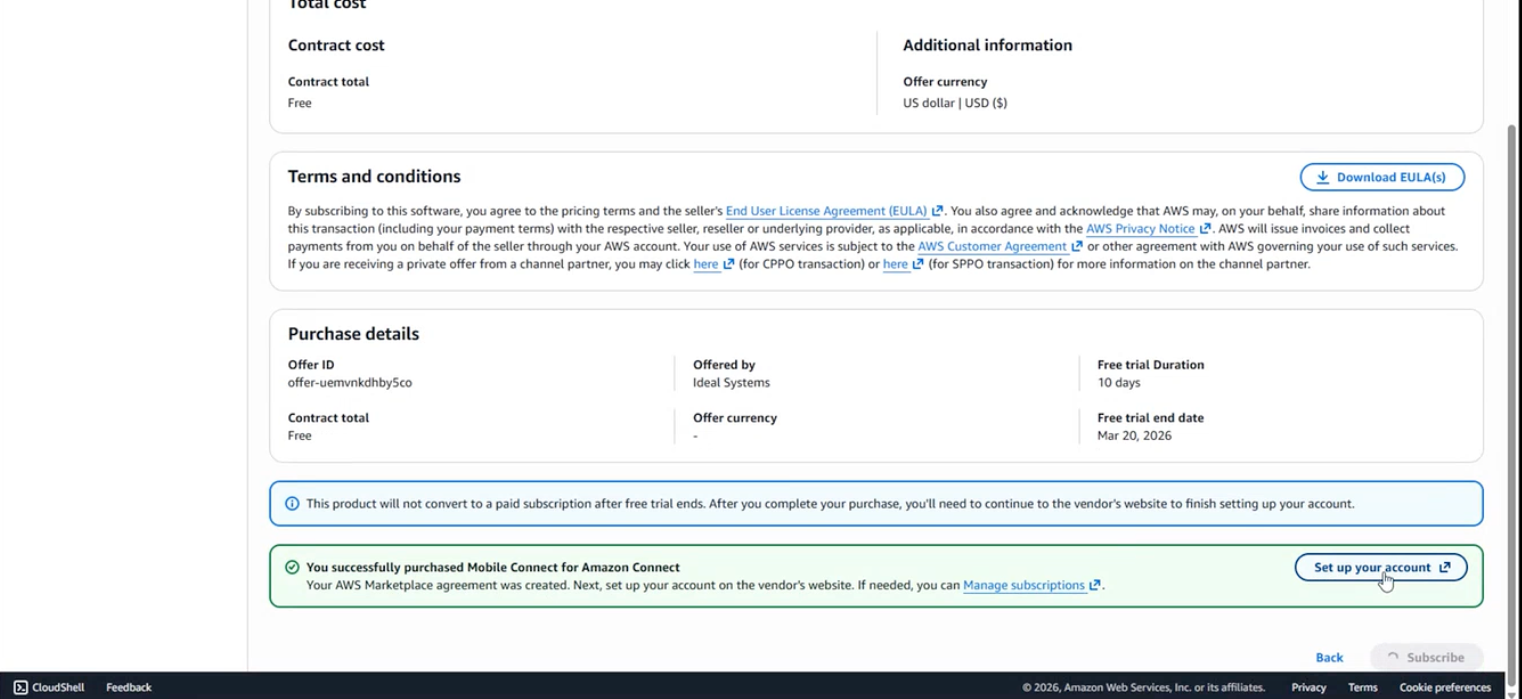
3) You will be redirected to an offer which outlines all the details including pricing arrangements. Select the free trial offer and click "Subscribe".
2. Set up your account
Once you are subscribed, you can start setting up your account. Click "Set up your account" in the green box after clicking subscribe.
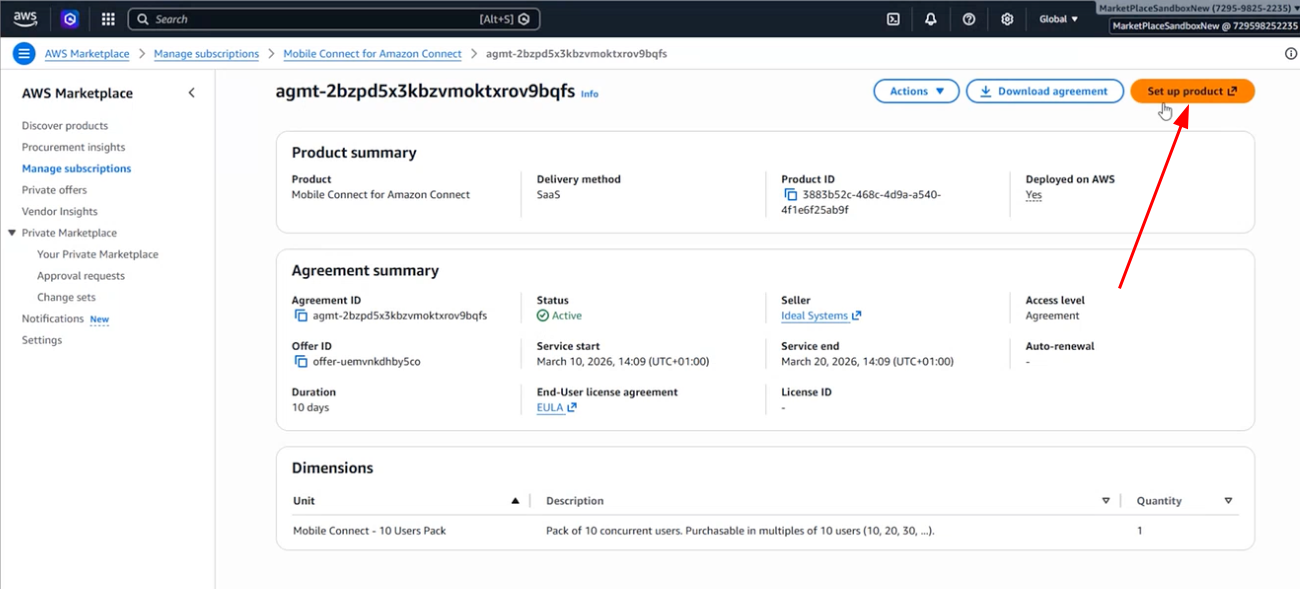
If you are returning to this process and want to set up your account after previously subscribing, follow the following steps:
1) login with your AWS account and navigate to the "Manage Subscriptions" page in AWS Marketplace
2) Click on the Agreement ID of your Mobile Connect subscription:
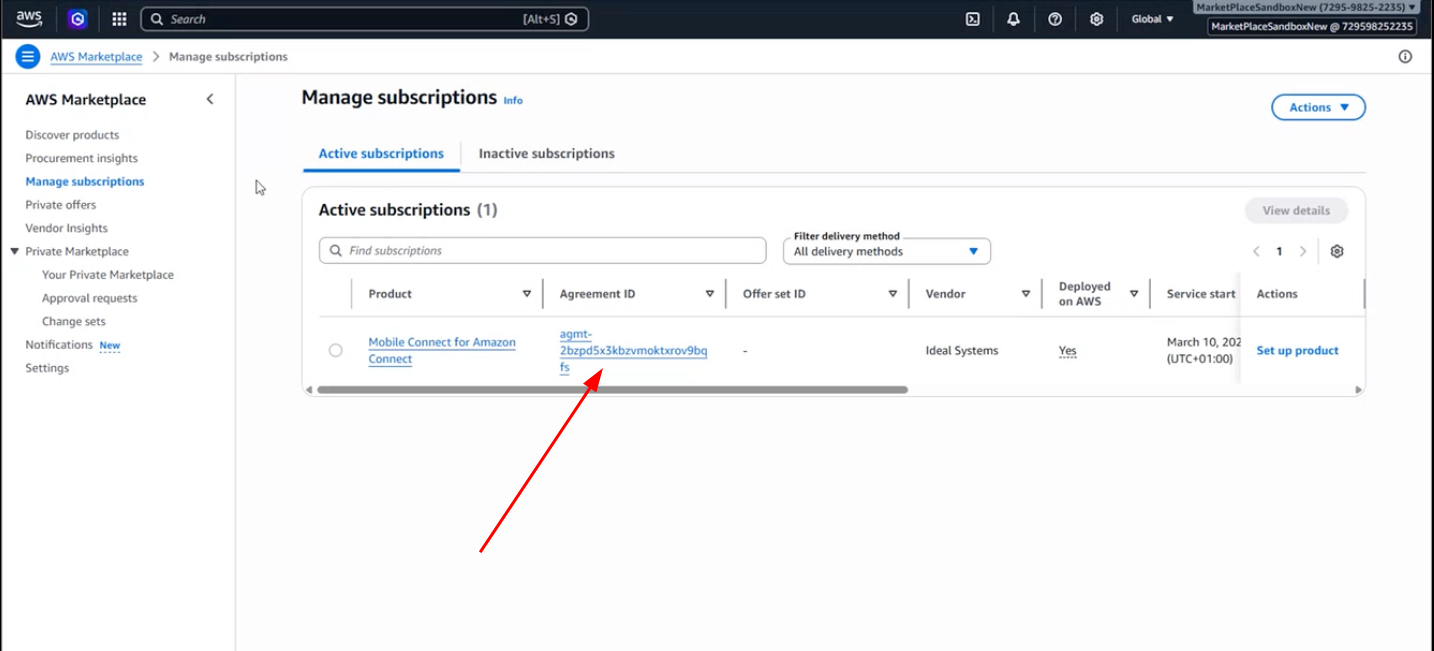
3) Click on the "Set up product" button:
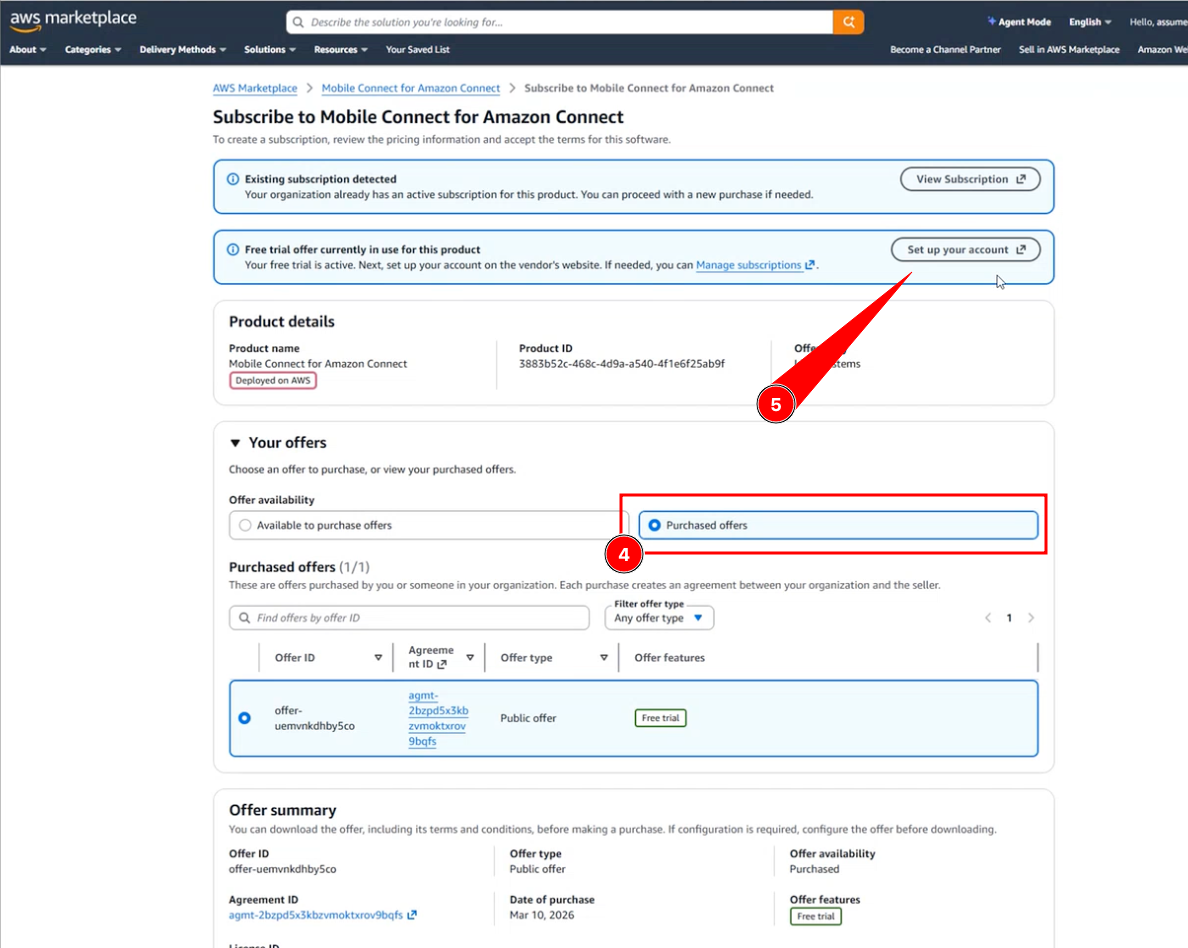
4) Ensure "Purchased offers" is selected
5) A blue box with "Set up your account" should be visible, click on the button to get redirected to account creation. This blue box can appear at the top or further down on the page.
3. Create organization
Click "Create Organization" and complete your organization and contact details.
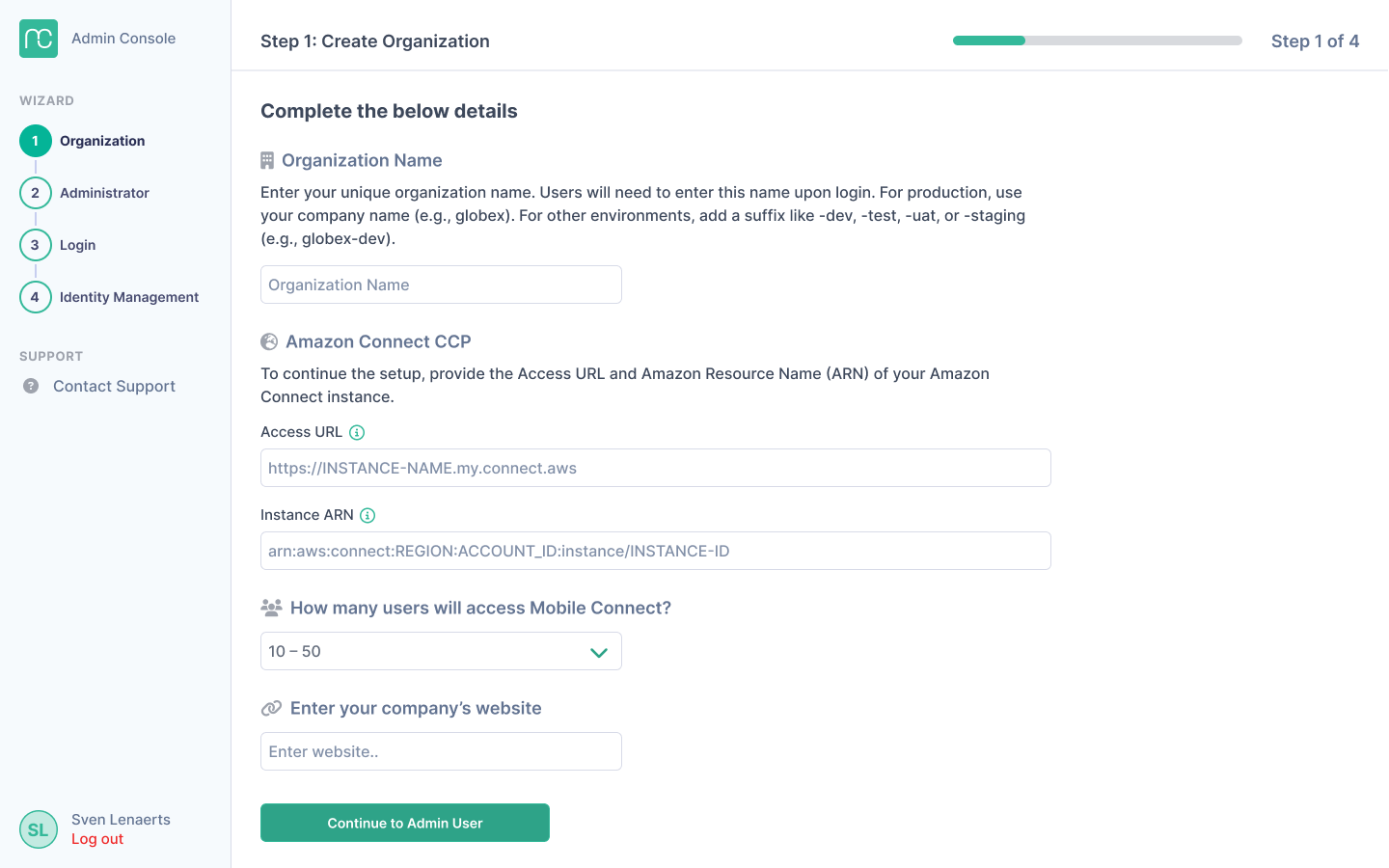
(!) Note: You can only create one organization per AWS account. The name of the organization will also be used by users to login to the application. if you want to create a DEV/UAT/TEST organization, please make sure to create this with the appropriate separate AWS account.
4. Create admin account + login
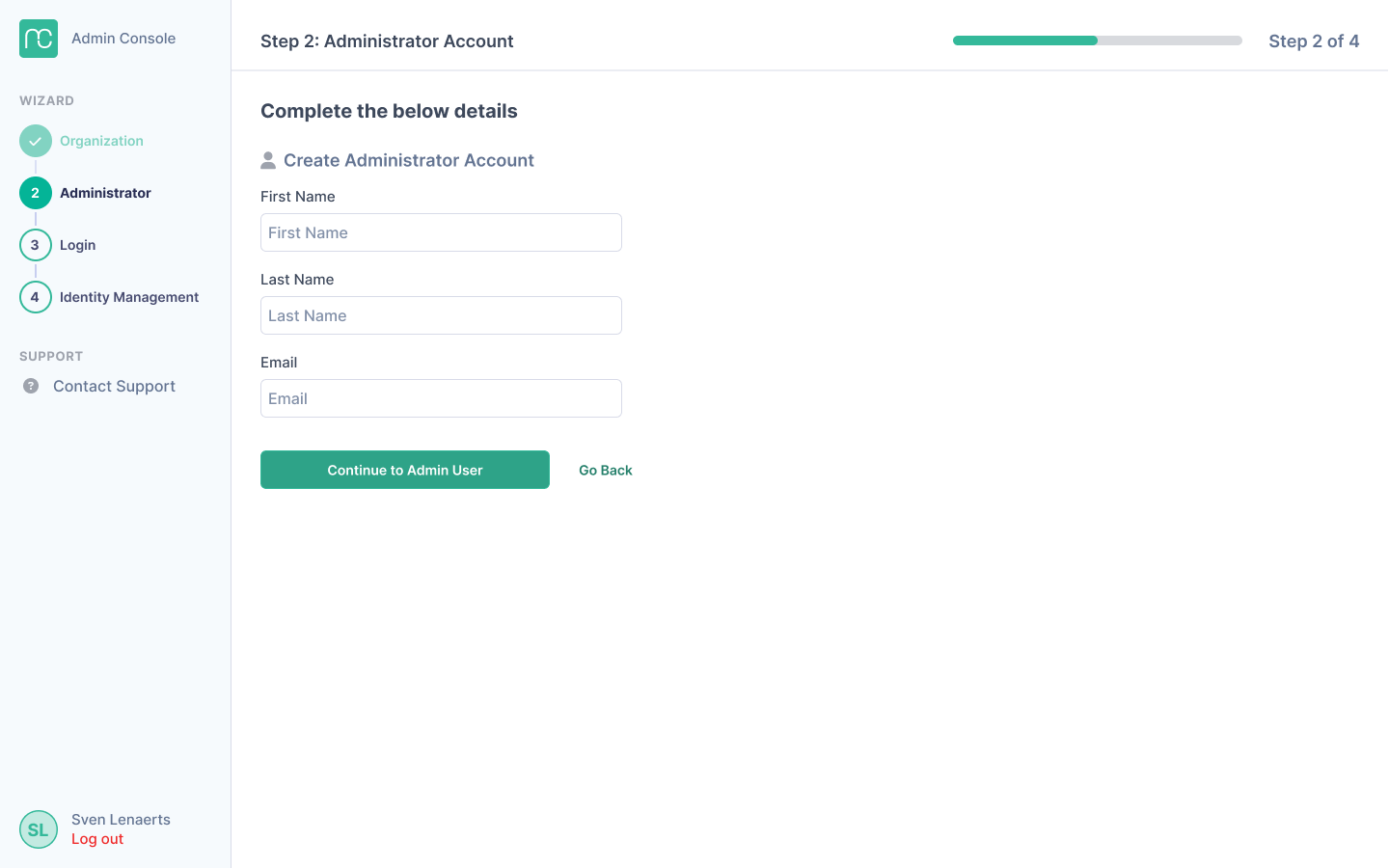
Once you have completed the creation of the organization, you will be able to create an administrator account.
After the creation of your admin account, you will be able to login and start the identity management setup. If you can't find the link to the admin login, click here.
5. Identity management
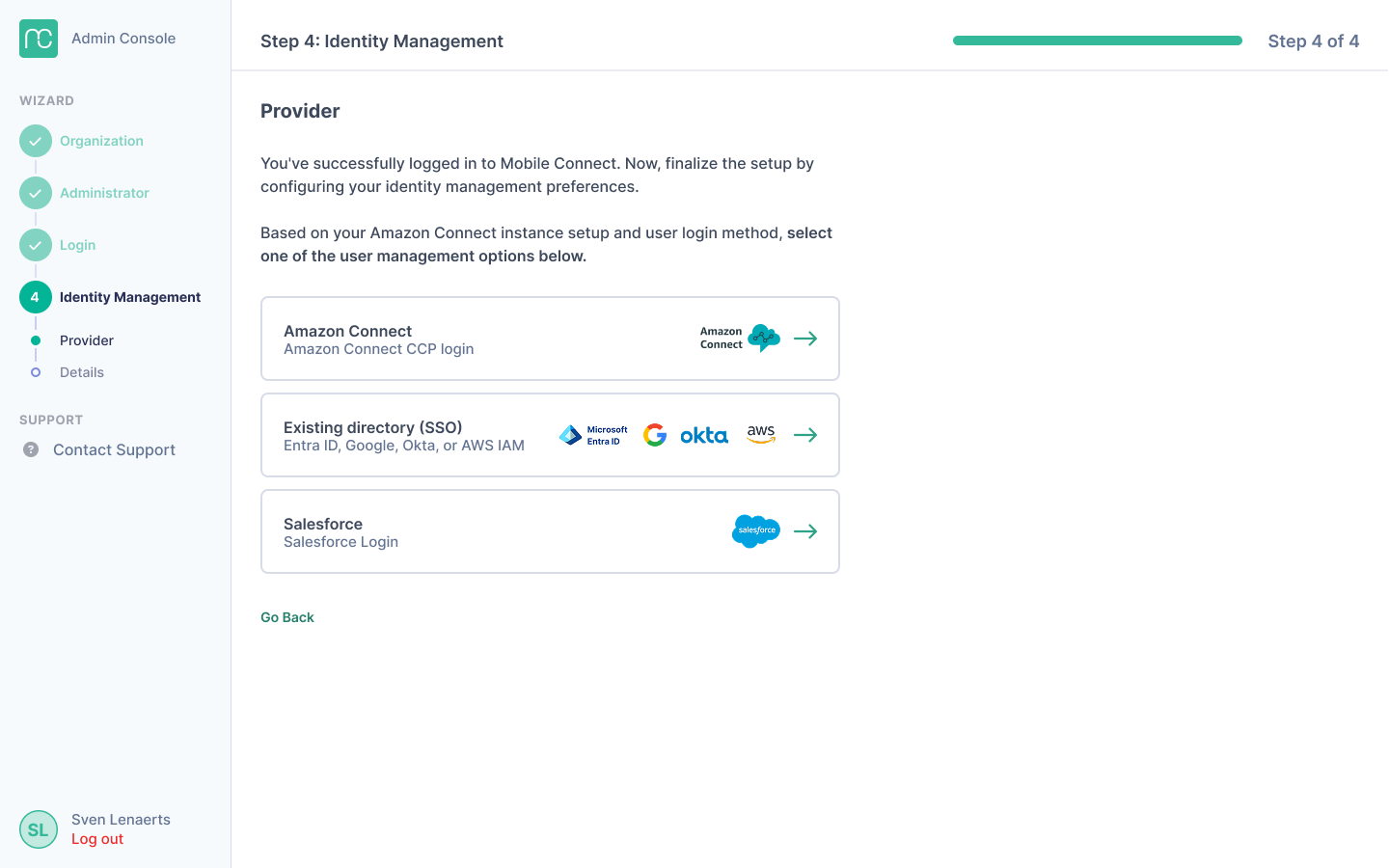
To finalize the setup, you'll need to setup the identity management that will enforce how users can login to the Mobile App of Mobile Connect. Please make sure to use the same identity management as you use for Amazon Connect CCP.
Once you have selected your preferred option, follow the steps of the procedure in which you will be asked to provide your Amazon Connect instance details and - if required - the details of your identity management setup.
For Amazon Connect
We support Amazon Connect identity management by default. For other identity providers, choose the appropriate setup option.
For Azure/Entra ID, Okta, Google Workspace, or AWS IAM Identity Center:
Select "Existing director (SSO)" during the identity management provider step. Follow the SSO instructions in the admin console and the relevant documentation below
- SSO Azure/Entra ID
- SSO Google Workspace
- SSO AWS IAM
- SSO Okta
- SSO PingID
For Salesforce:Select "Start Salesforce setup" during the identity management provider step. Follow the SSO instructions in the admin console and the relevant documentation below
If you have any issues, you can contact our SSO support team at mc.notifications@idealsystems.be.
6. Security profiles: contact search
In order for your mobile users to see their recent interactions in the Mobile App, you need to make sure that they have the sufficient permissions in their Amazon Connect security profile. We recommend to especially check for the permissions listed below, as these are sometimes not assigned to users by default.
1. Go to "users" -> "Security profiles"
2. Add the following permissions under "Analytics and Optimization" to your users:
- Contact search (VIEW)
- Search contacts by keywords (VIEW)
- Contact attributes (VIEW)
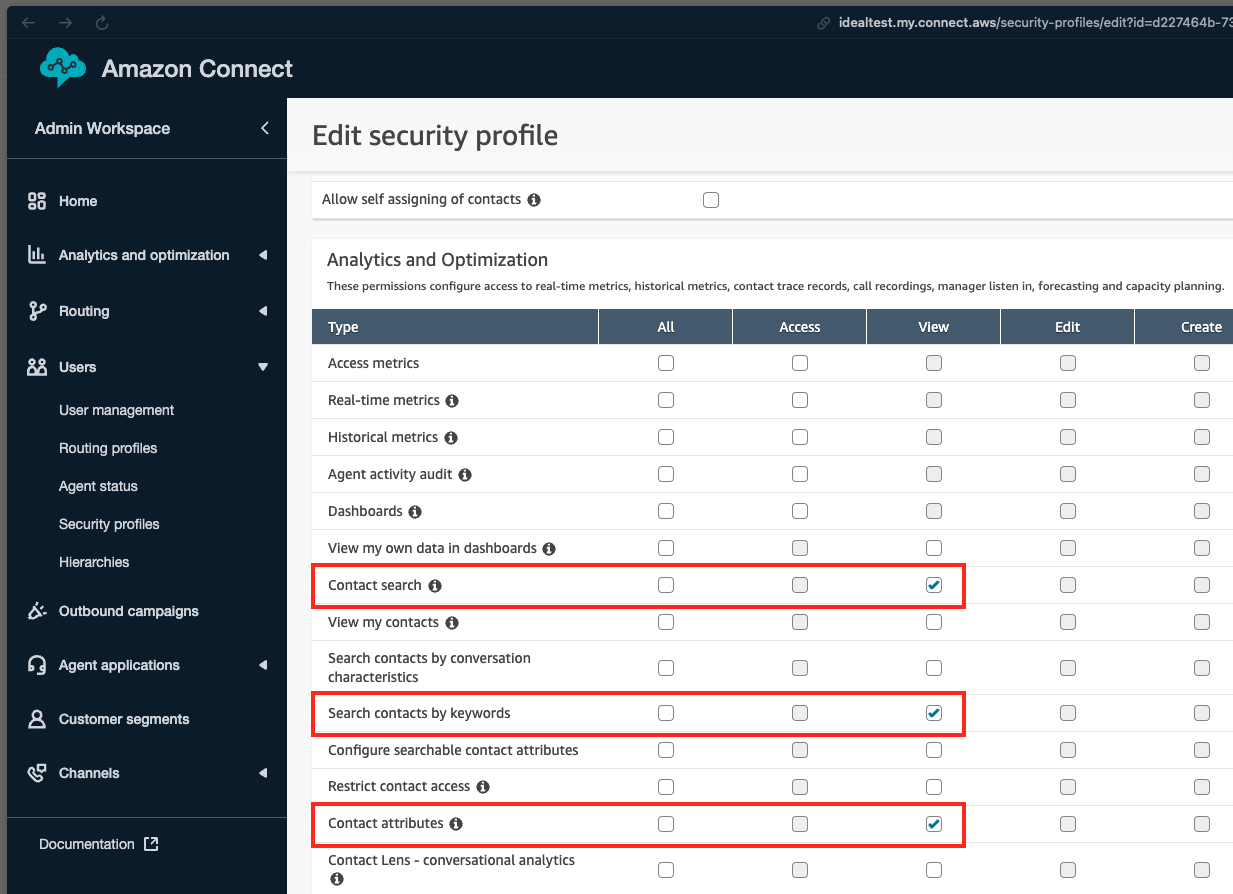
Users without this permission might receive an error message in Mobile Connect.
7. Application login
Your setup is done. You and users of your organization can now download the app from the iOS app store or Android Play Store and log in to the application.
iOS: https://apps.apple.com/app/id1625067813
Android: https://play.google.com/store/apps/details?id=be.idealsystems.mc.amazon
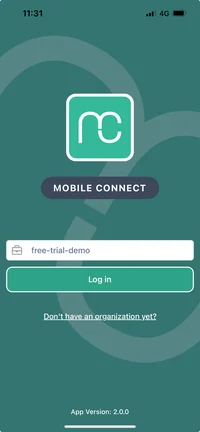
To log in, enter the name of the organization you created (see step 3) and click "log in". This will redirect you to the login configuration you have set up (see step 5).
8. Configuration
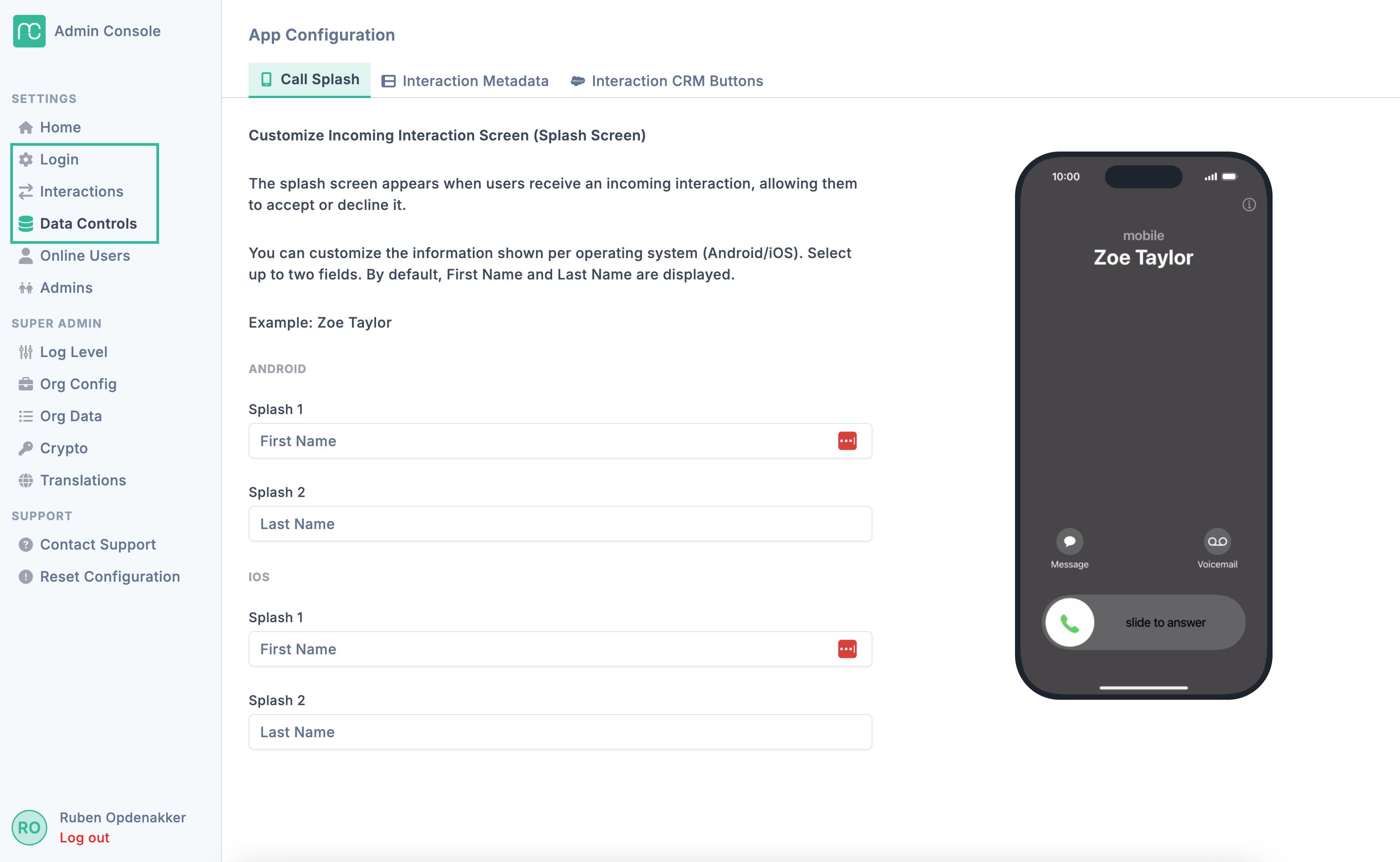
We offer some configuration options allowing you - among other things - to:
- Set Key Value Pairs (KVP) that will display customer information on the app during an interaction
- Set Activity reminder that will logout your users automatically after being online for a number of hours
If you'd like to change these configurations, navigate to the admin console and login with the admin credentials as set in the steps above.
9. One last thing: Do you have a firewall?
In case your organization has a firewall configured and Mobile Connect (the app and admin page) doesn't work, you should open up the following domains:
- *.idealsystemscloud.com (help center)
- *.idealsystemscloud.be (click-to-dial Salesforce, legal docs)
- *.mobileconnectcloud.com (application back-end)
More info on the firewall settings can be found in this article.
Issues during setup?
If you encounter any issues during the setup, please contact us at mc.notifications@idealsystems.be and we'll assist you further.