
Settings
The Settings menu in the Mobile Connect app allows you to personalize how the app works for you — from call preferences and queue selection to notifications and account info.
Whether you're an agent, team lead, or field user, understanding your settings ensures smooth, efficient communication within the Mobile Connect for Amazon Connect environment.
1. Access your Settings#
- Tap the Settings icon ⚙️ in the menu.
2. Connection#
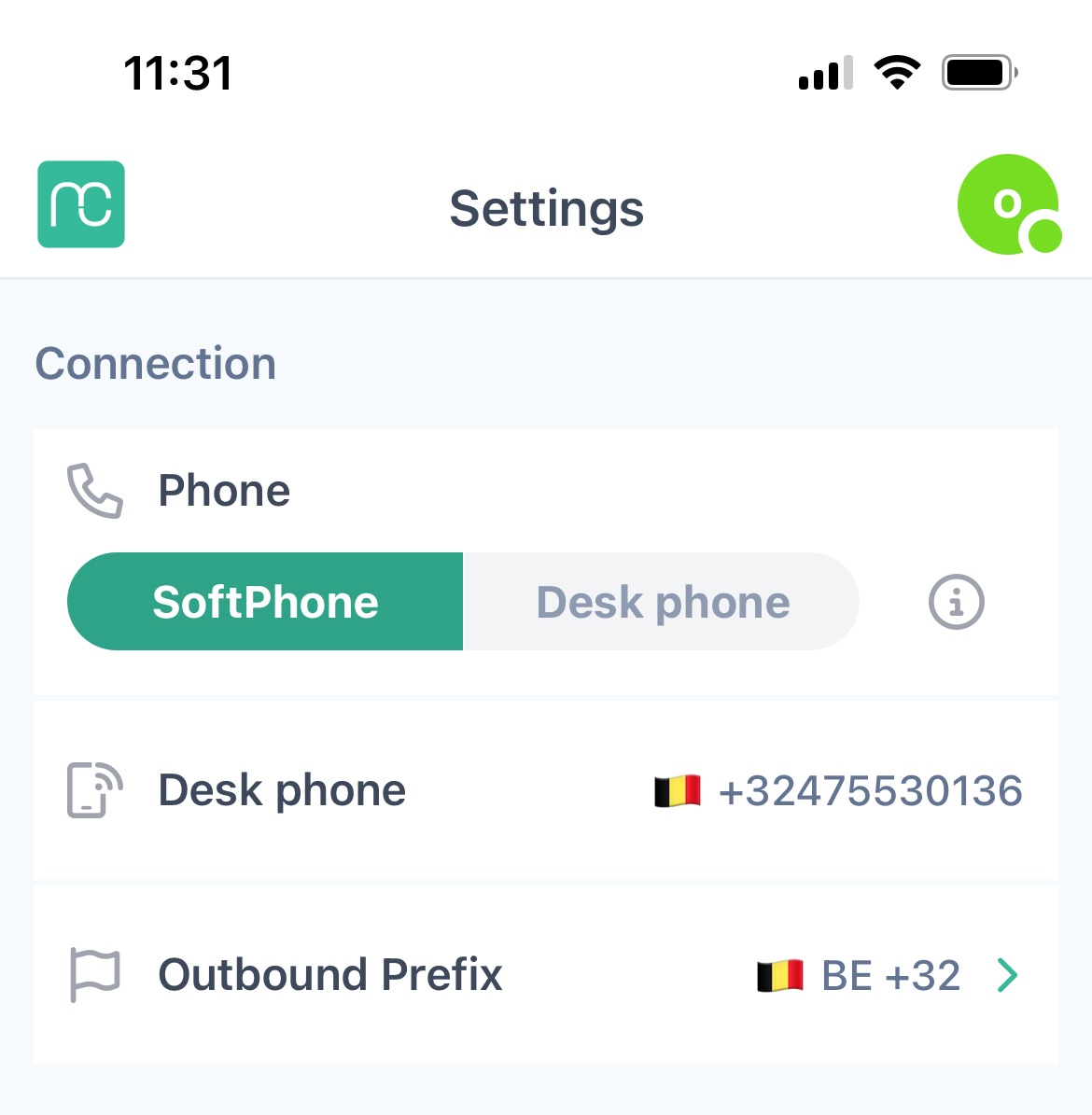
By default, Mobile Connect uses SoftPhone (internet-based calling) for the best possible voice quality. However, if you're in an area with unstable or weak internet, you have the option to switch to DeskPhone (cellular network).
How to Switch#
-
Look for the option labeled Phone.
-
Toggle the setting to switch from SoftPhone to DeskPhone.
Note: To use the DeskPhone calling feature in the Mobile Connect for Amazon Connect, you need to have a valid external phone number (typically your mobile number). This number is used for callback bridging when DeskPhone is selected as your call method. This routes your calls over your mobile carrier (SIM card), using your standard cellular voice connection. When DeskPhone is used, you will first receive a call from a number, which you should answer.
Related Article: Understanding Softphone/DeskPhone Calling and Call Routing in Mobile Connect for Amazon Connect
3. Queues, Profiles and Feedback#
3.1 Queues#
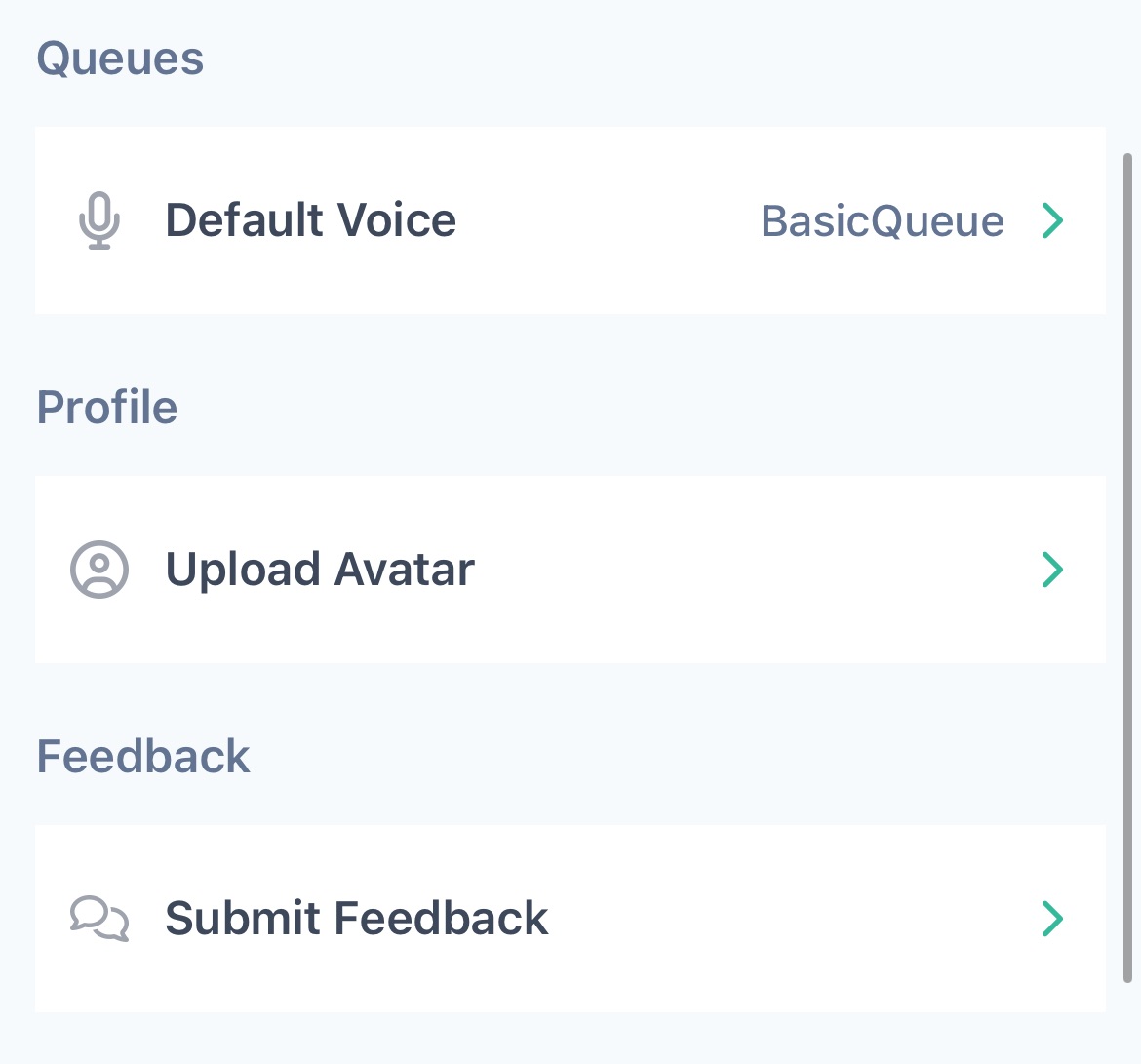
Set your default voice queue to define the number displayed when you make outbound calls
3.2 Profiles#
Upload your avatar and select from your Photos or Use a Camera to capture your image that you can use
3.3 Feedback#
If you'd like to send feedback or suggestions to the Mobile Connect team, use this feature
4. Permissions#
4.1 Permissions for Contacts#
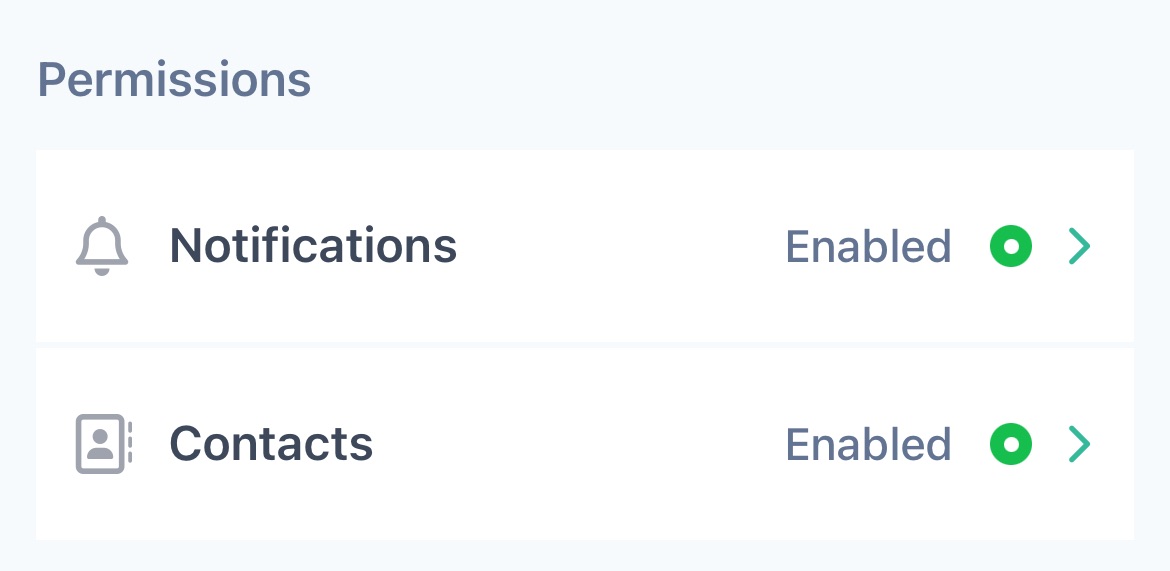
Upon your first login to Mobile Connect, the app will ask for permission to access your contacts. This lets the app:
- Display names instead of just phone numbers
- Allow you to call or receive messages from saved contacts
- Sync with contacts for easier call management
4.2 Permissions for Notifications#
When you first log in to Mobile Connect for Amazon Connect, the app will prompt you to allow notifications. This ensures you receive important alerts like:
- Incoming calls or interactions
- Missed call reminders
- System messages
Note: Without notifications, you might miss:
-
Time-sensitive customer calls
-
Queue alerts or callback requests
Tip: If you accidentally denied access, you can easily re-enable both from your Phone's settings.
5. Language#
By default, Mobile Connect uses the language of your phone. If you prefer another language, you are able to change it in your settings under Language.
Mobile Connect is available in English, Dutch, French, Portuguese and Spanish.
6. Info and Logout#
6.1 Info#
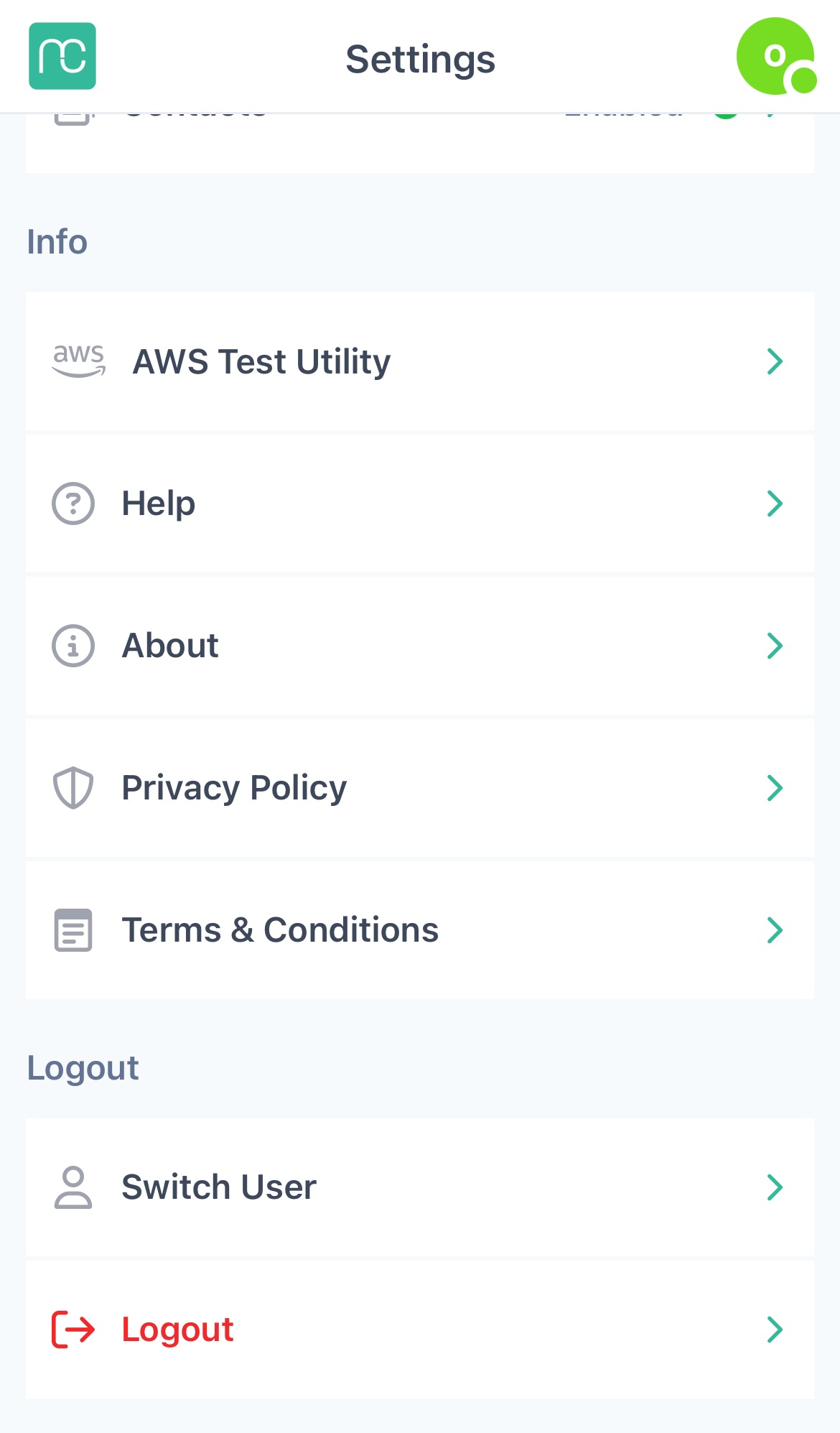
AWS Test Utility
The Amazon Connect Test Utility in the Mobile Connect app helps you check if everything is working correctly before you start taking or making calls. It quickly runs tests to make sure your app is properly connected to Amazon Connect.
The Test Utility looks at:
-
Your login – Are you signed in correctly?
-
Your network – Is your internet or mobile data working?
-
Call method – Can you place a call using WebRTC or PSTN?
-
Device setup – Is your microphone and phone ready to use?
Help
This link brings you to the Help Center for Mobile Connect
About
This is a general information about your device, configuration and version
Logout/Switch User
- View your logged-in profile and log out or switch accounts if necessary.
- Tip: If you experience any issues with Mobile Connect, Logging out and back in most of the time helps rather than deleting and reinstalling the application.