Configurations
Functionalities
Updated:July 2, 2026
How to show participant / CRM data to your users during an interaction
It's possible to show data about the customer to Mobile Office users like this:
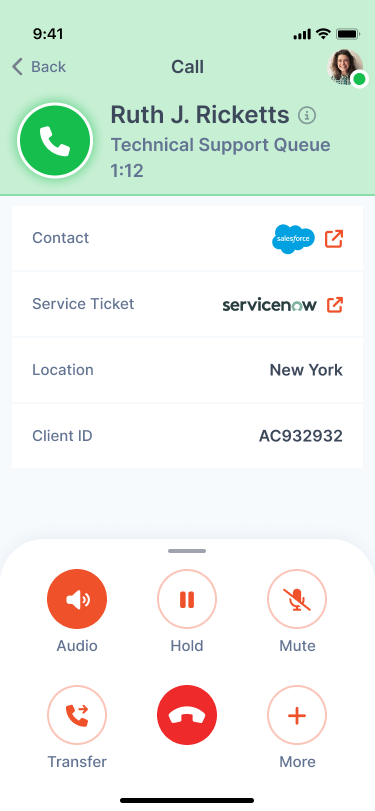
To do so, follow these steps:
- In Genesys Cloud, ensure the data is attached to the interaction as participant data. Data can be native from Genesys but also pulled from CRMs via data actions.
- Mobile Office will by default show all participant data attributes. To change this to only certain attributes, navigate to "Participant Data" under "Configuration" in the Mobile Office Provisioning portal. Add the attribute names you want to show in Mobile Office like the screenshot below. You can set up this list per interaction type.
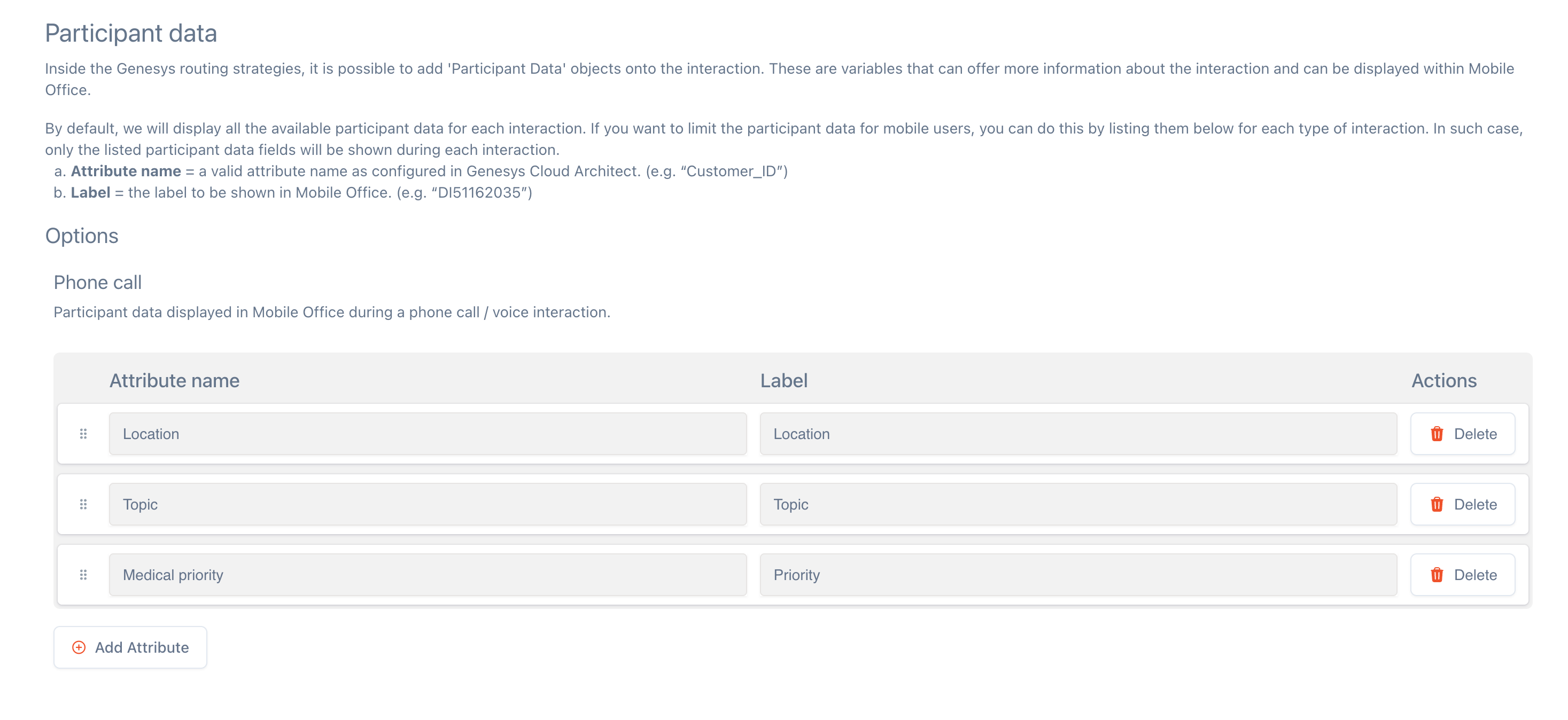
-
For external links, like to a form link or an app-to-app link to your CRM app, navigate to "Integrations (CRM & Other)" and add the attributes there:
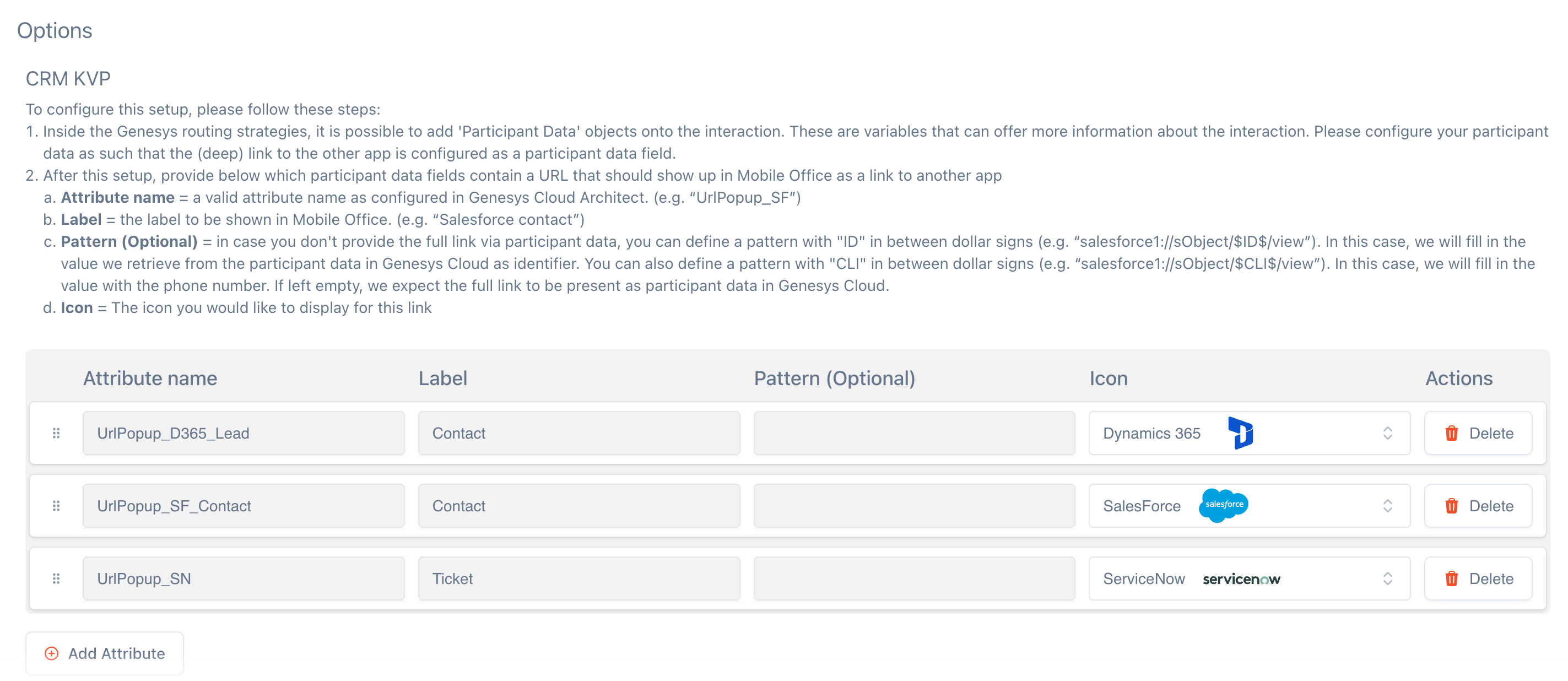
-
Specific info on app-to-app links for the different CRMs can be found on our Integrations page.