Tips
Getting Started
Updated:January 28, 2026
Ensure call notifications work properly on OPPO phones
OPPO devices use battery optimization features that may inadvertently block call notifications. To ensure you receive all call notifications, please change the following settings.
The below example is for an OPPO phone running on ColorOS 14 and might differ slightly for other OS versions.
Battery optimization#
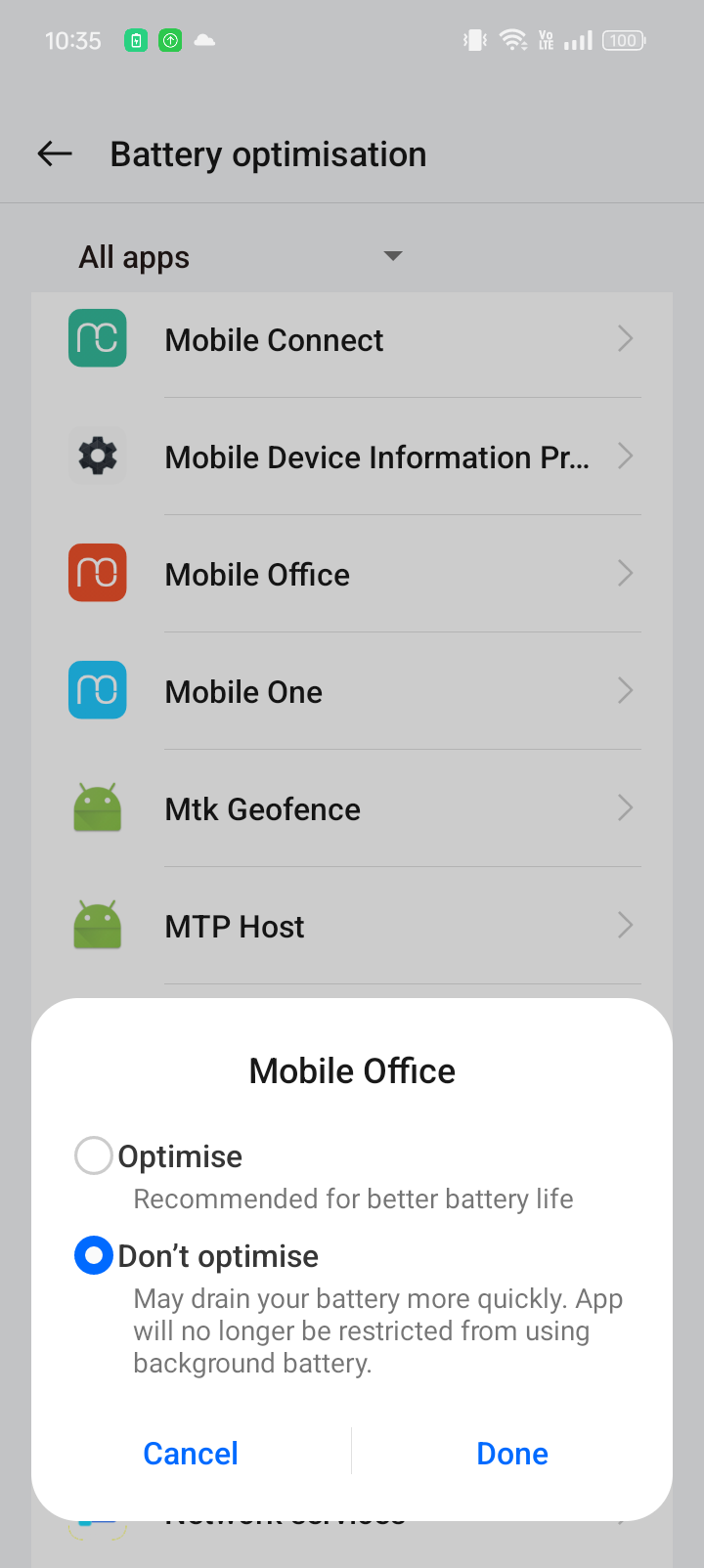
- Open the Mobile Office app
- Navigate to Settings > Permissions > Unrestricted battery
- Find Mobile Office in the list and set it to "Don't optimize"
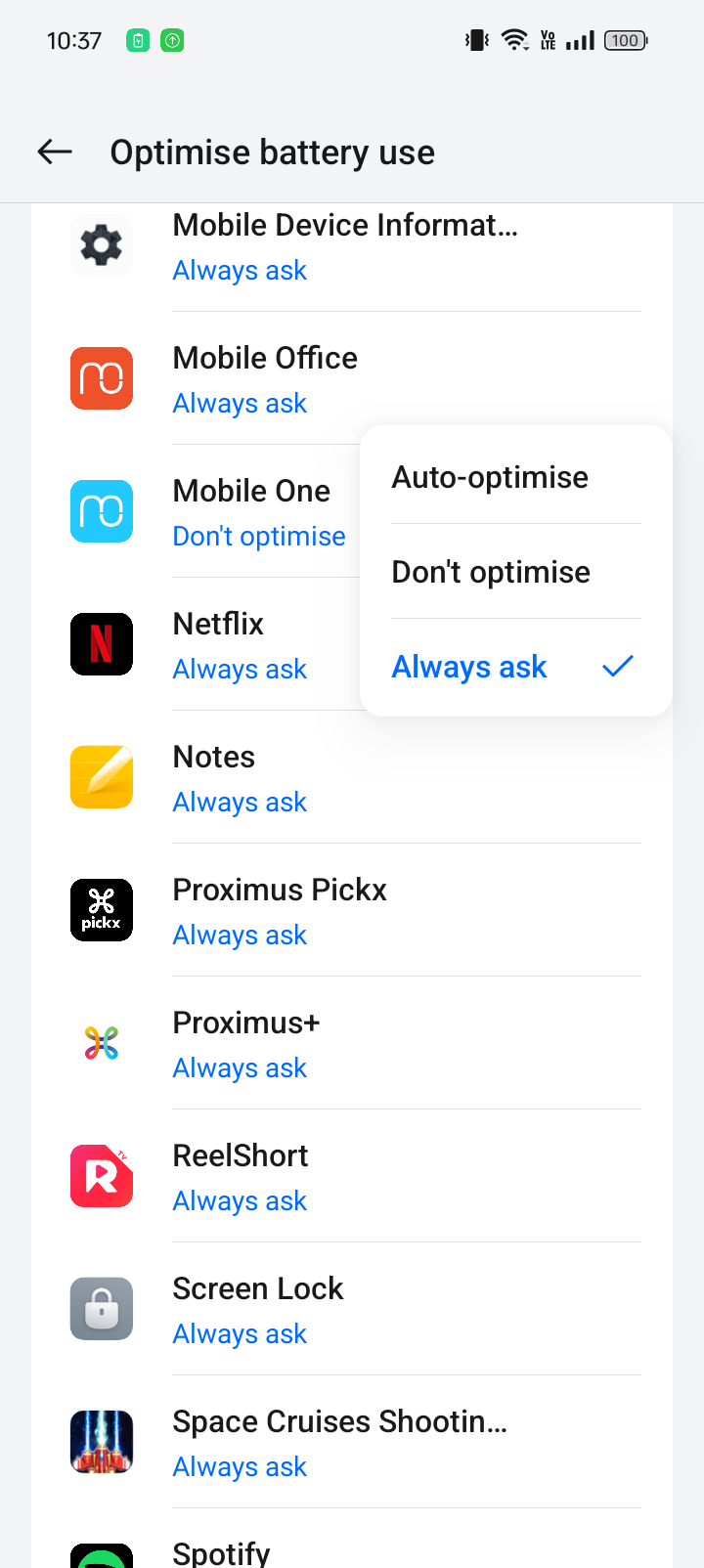
- Open device settings
- Navigate to Battery > More settings > Optimize battery use
- Find Mobile Office in the list and set it to "Don't Optimize"
Power saving mode#
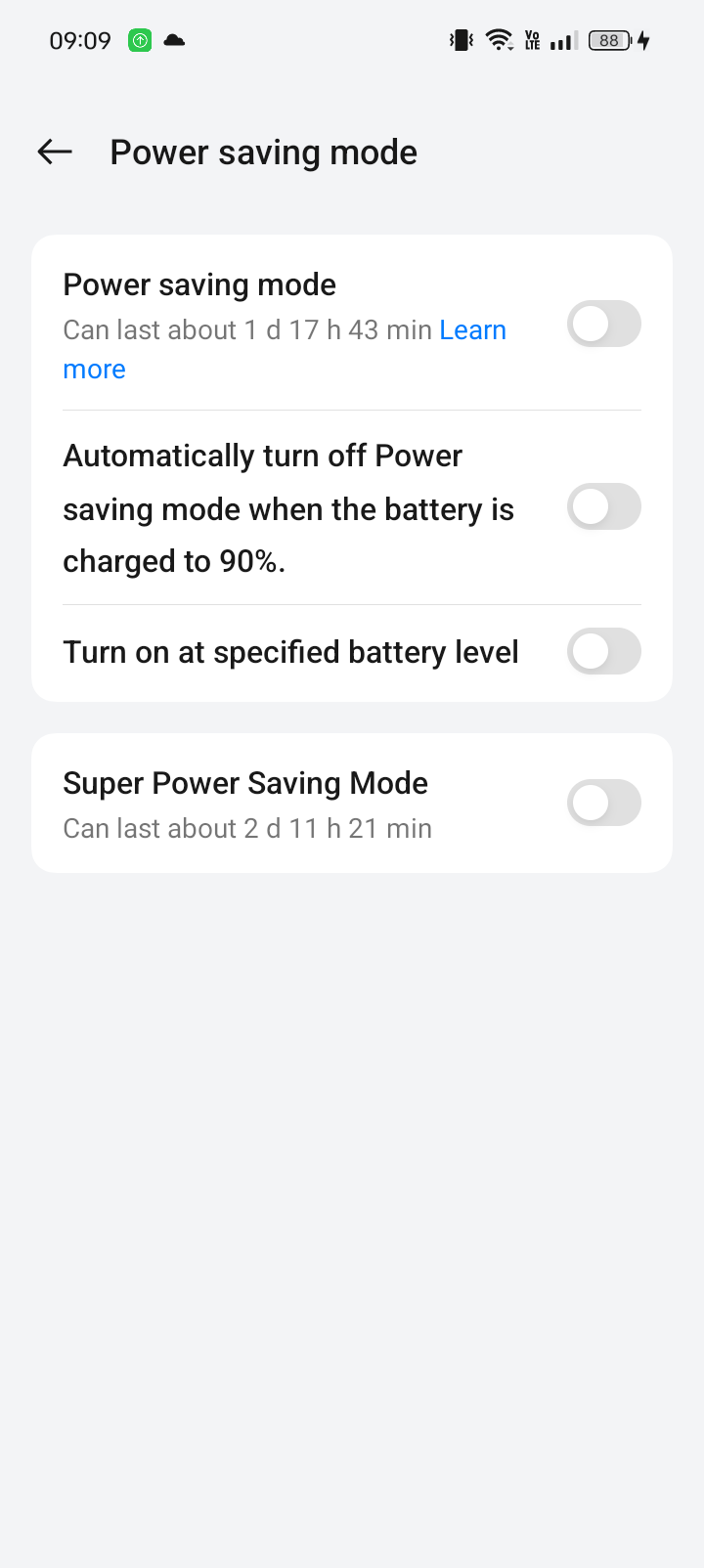
- Open device settings
- Navigate to Battery > Power saving mode
- Switch "Power saving mode" off
- Switch "Turn on at specified battery level" off
- Switch "Super Power Saving Mode" off
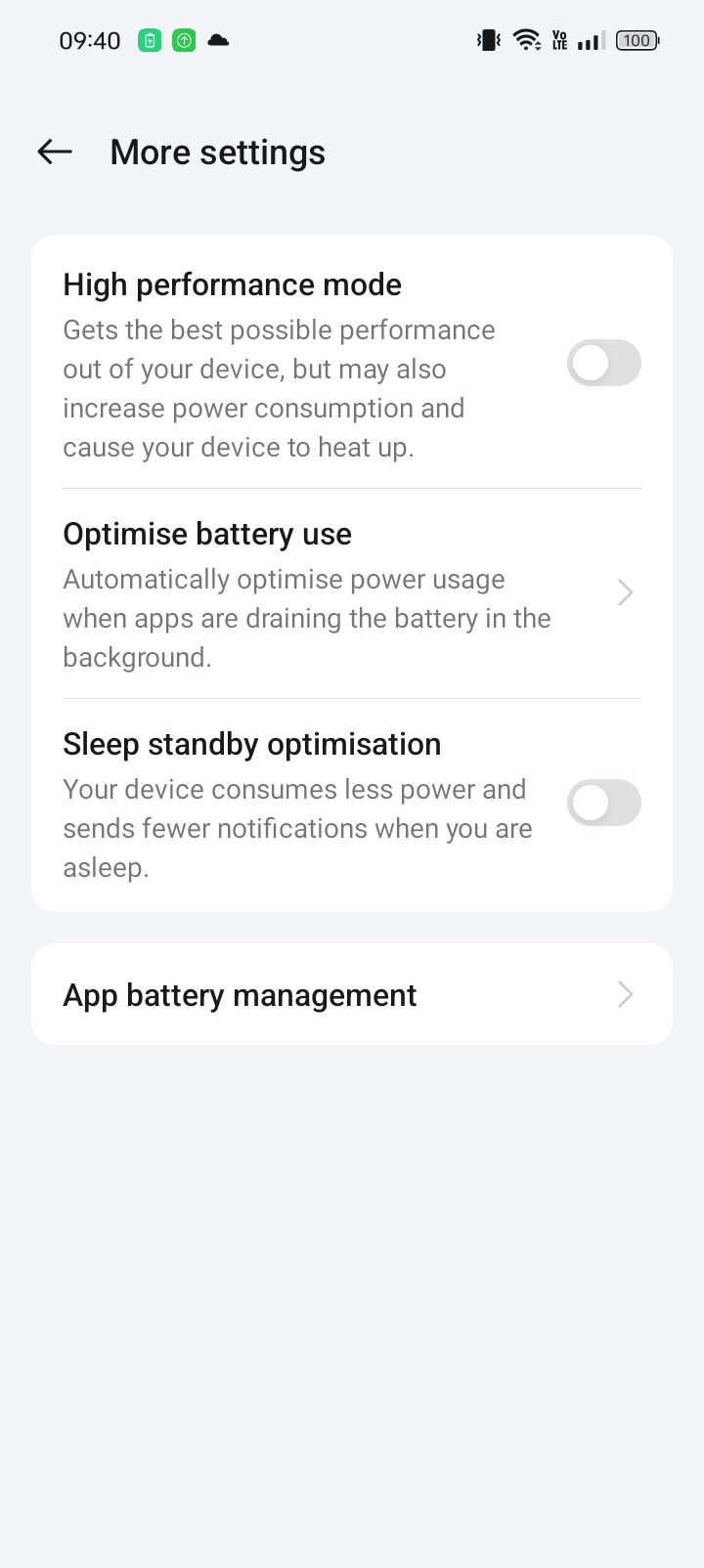
Sleep standby optimization#
- Open device settings
- Navigate to Battery > More settings
- Switch "Sleep standby optimization" off
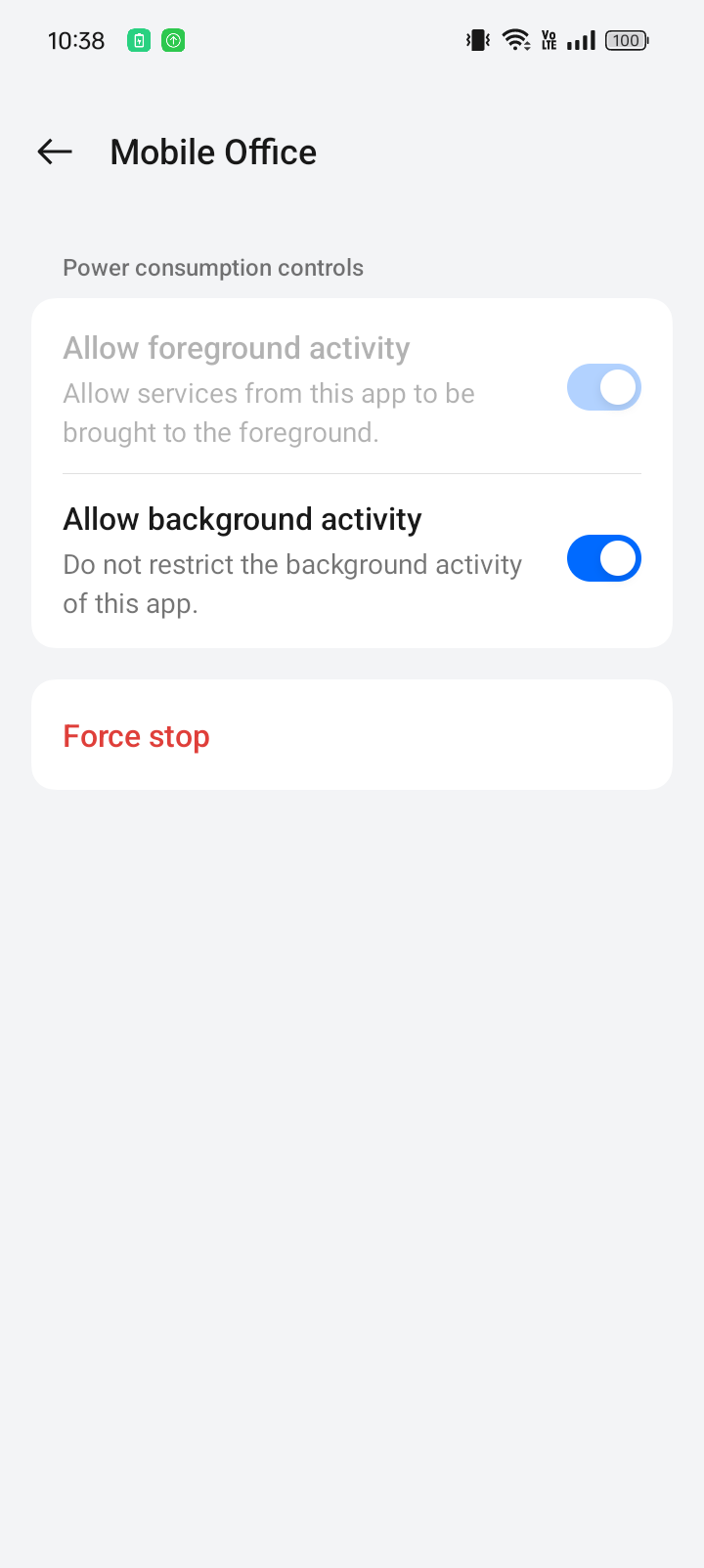
Battery usage#
- Open device settings
- Navigate to Apps > App management > Mobile Office > Battery Usage
- Switch "Allow foreground activity" on
- Switch "Allow background activity" on
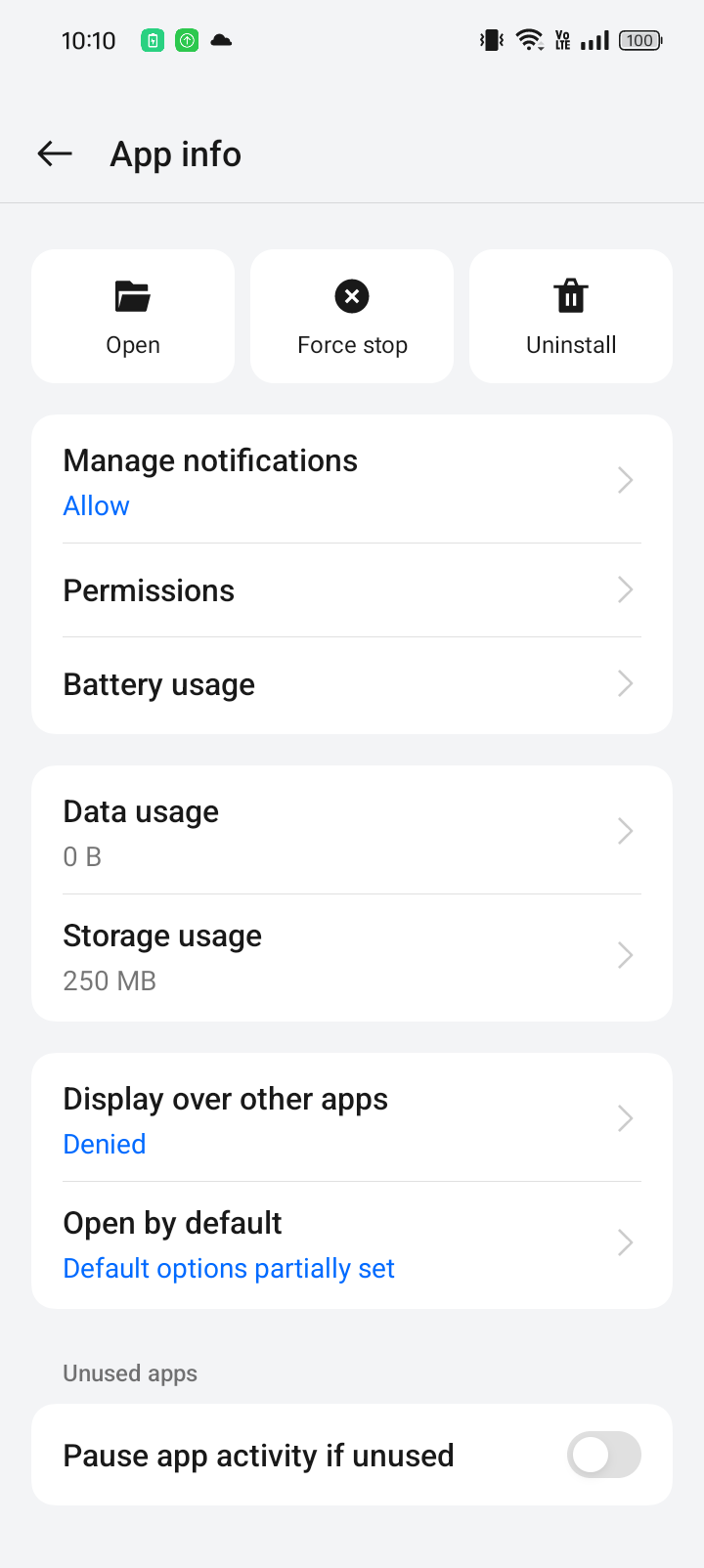
Pause app activity if unused#
- Open device settings
- Navigate to Apps > App management > Mobile Office
- Switch "Pause app activity if unused" to off
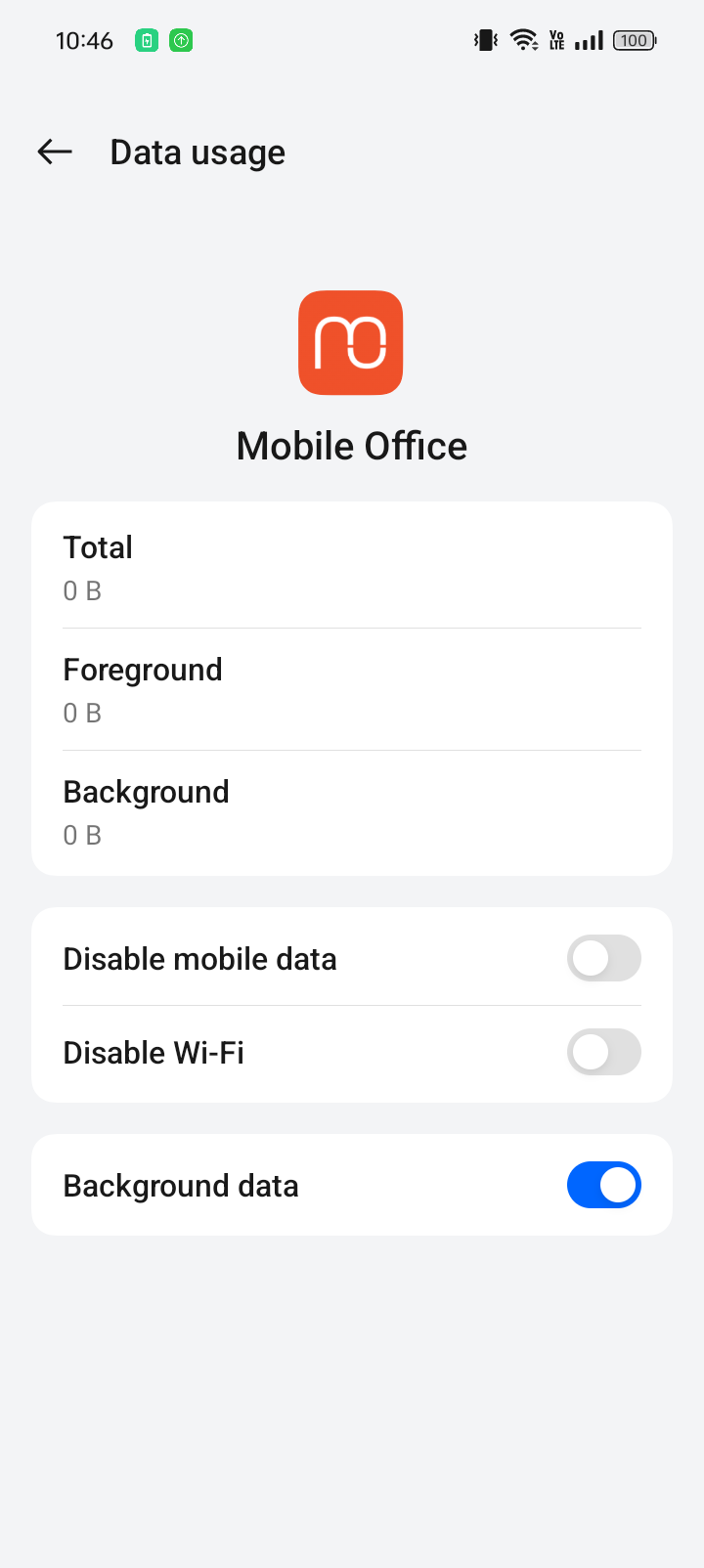
Background data#
- Open device settings
- Navigate to Apps > App management > Mobile Office > Data Usage
- Switch "Background data" on