How to use Genesys Cloud desktop and Mobile Office simultaneously?
With Mobile Office, you can stay logged in to Genesys Cloud Desktop and Mobile Office at the same time. This means you can leave your desktop and still be reachable for interactions on your mobile.
1. How does it work?#
If you're logged in on both devices, your Genesys Cloud instance stays in sync across them. For example:
-
If you change your status in Mobile Office, it will automatically update on Genesys Cloud Desktop.
-
If you end a call on mobile, you can complete your wrap-up on the desktop.
When receiving an interaction, it will be offered on both devices. For example, an incoming voice call will ring on both. The device you answer from will carry the audio stream. Switching devices mid-interaction is not possible.
2. Genesys settings that may affect simultaneous use#
Some Genesys Cloud settings can disrupt the simultaneous use of Desktop and Mobile Office. This usually relates to the audio stream and can cause it to route to the wrong device — for example, the desktop "stealing" the audio. Users often report this as: "I don't hear any audio."
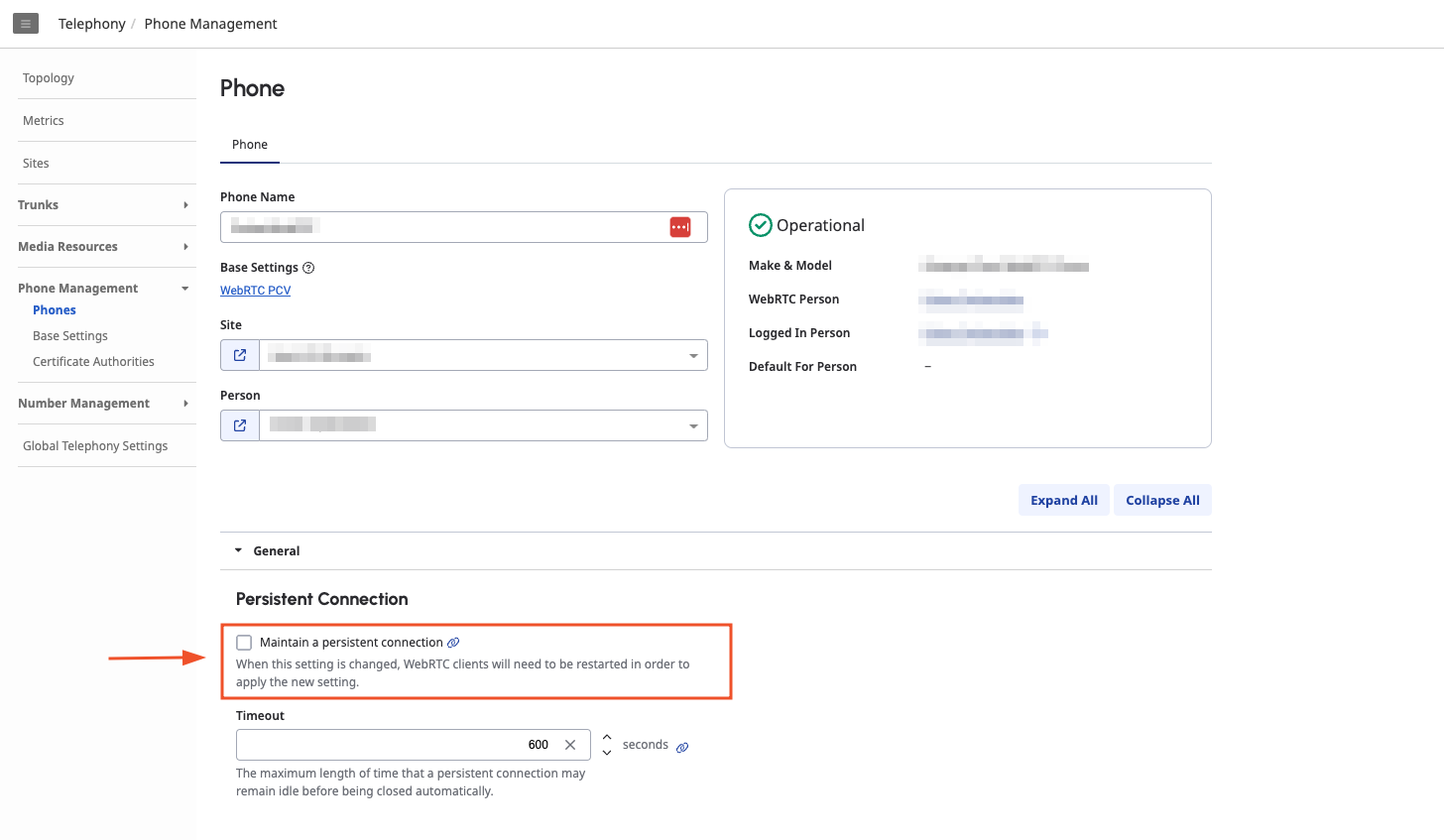
2.1 Persistent connection#
Check that persistent connection is turned off for those users that use Mobile Office.
⚙️ Admin -> Phone Management -> Phones -> Select Phone -> General
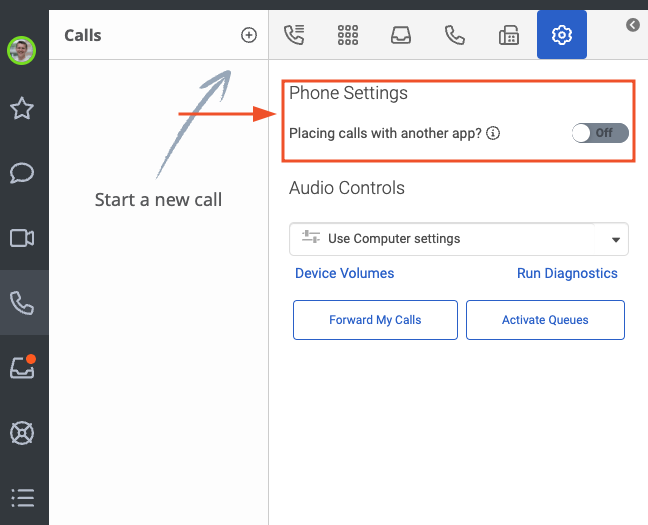
2.2 Placing calls with other app#
Check that placing calls with another app is turned off for those users that use Mobile Office.
⚙️ Calls -> Phone Settings
2.3 Auto-answer#
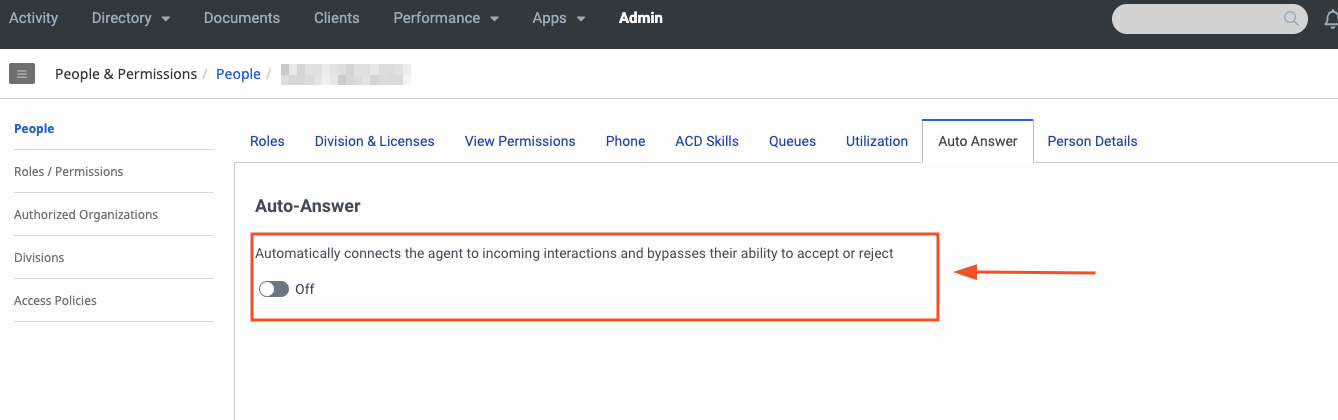
Check that auto-answer is turned off for your Genesys Cloud organization.
⚙️ Admin -> People and Permissions -> People -> Select User -> General