
Microsoft Intune capabilities
1.1 Concept#
Microsoft Intune is a cloud-based service that provides mobile device management (MDM) and mobile application management (MAM) capabilities. It allows organizations to control how company-owned devices are used, enforce compliance policies, protect corporate data on personal devices, and manage the mobile applications employees use to access company resources. Intune integrates with Microsoft's broader security ecosystem to provide comprehensive endpoint management and security.
Mobile Office provides a solution for organizations that use Microsoft Intune for mobile device management (MDM) while accessing Genesys Cloud services. While Mobile Office does not include the full Intune SDK integration, we offer a secure alternative approach for safe use in enterprise Intune environments through our external browser authentication method.
This allows organizations to maintain security compliance while still benefiting from Mobile Office functionality. This document outlines what is possible and what limitations exist when using Mobile Office in conjunction with Intune policies.
1.2 Mobile Office as Public app#
Mobile Office is available as a public app through official app stores (Apple App Store and Google Play Store). As a public app, it can be added to your organization's Intune app catalog:
- In the Microsoft Intune admin center, navigate to Apps > All apps > Add
- Select iOS/iPadOS or Android store app as the app type
- Search for "Mobile Office for Genesys Cloud" in the app store
- Select the app and follow the prompts to add it to your catalog
- Assign the app to your user groups as needed
Once added to your catalog, you can distribute Mobile Office to managed devices, though app protection policies requiring the Intune SDK will have limitations as noted below.
1.3 Intune capabilities#
1.3.1 Current capabilities#
Mobile Office enables secure access to Genesys Cloud services while respecting many Intune security requirements through our external browser authentication solution. This approach leverages your existing Microsoft security infrastructure and provides a balance between functionality and compliance. By redirecting authentication through the Edge browser (or any other browser of your choice), Mobile Office can honor conditional access policies and device compliance checks without requiring the full Intune SDK.
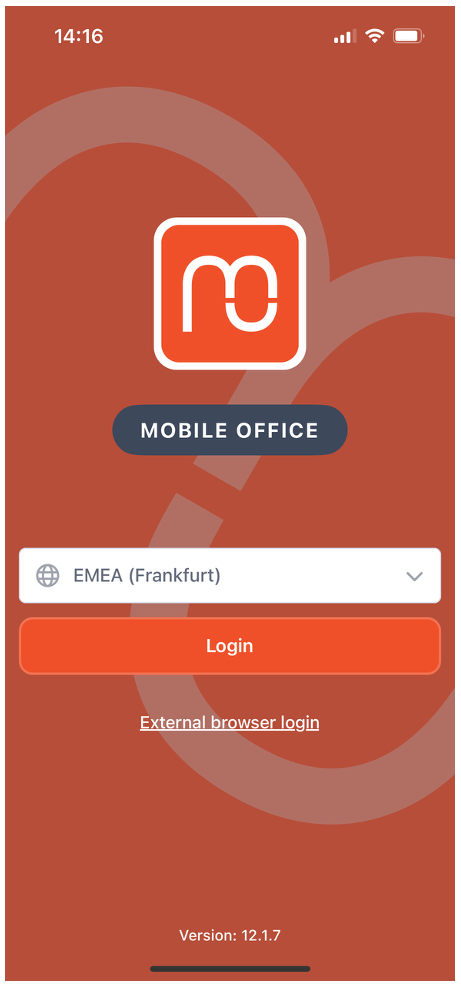
External login options on Mobile Office login screen.
1.3.1.1. External Browser Authentication#
- Edge Browser Support: Mobile Office allows users to authenticate via the Edge browser on their devices
- Policy Compliance: Using the browser-based login option enables compliance with certain device policies enforced through Intune
- Secure Access: Authentication security requirements can be met through the browser pathway
- Conditional Access: Support for Microsoft Conditional Access policies when using the browser login flow
- Single Sign-On (SSO): Compatible with SSO configurations through the browser authentication method
1.3.1.2. Benefits#
- No need to switch between multiple apps for authentication (unless multi factor authentication is required)
- Maintains a level of compliance with organizational security requirements
- Provides a workable solution for organizations with strict device management policies
- Allows employees to use Mobile Office on managed devices where direct integration might otherwise be blocked
1.3.2 Limitations#
While our external browser authentication approach enables Mobile Office to work within Intune environments, certain limitations exist due to the absence of the complete Intune SDK integration. These limitations primarily affect app-level policy enforcement and data protection capabilities that require deep integration with the Intune management framework. Understanding these constraints is important for organizations planning their mobile security strategy.
1.3.2.1. What's not possible#
- App-level encryption through Intune
- Preventing screenshots within the app via Intune policies
- Restricting copy/paste operations through Intune configurations
- Selective wipe of only Mobile Office data
- Application-specific PIN requirements separate from device PIN
For additional support or questions regarding Mobile Office and Intune compatibility, please contact mosupport@idealsystems.be.