
Recents
The Recents page in Mobile Office for Genesys gives you a quick overview of your recent activity, including inbound, outbound, and missed calls. Each entry includes the caller’s name (if available), number, time of call, and call direction. This page also includes your ability to change your Status.
1. Setting your Status#
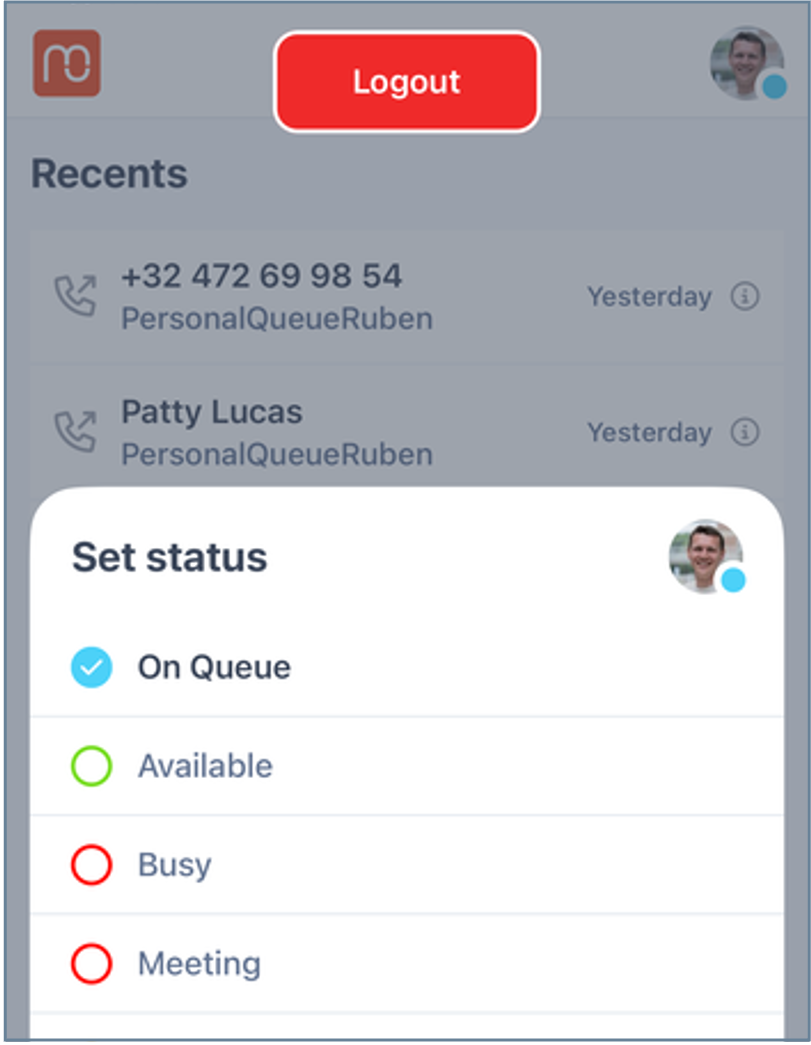
- Tap your profile icon to change your status
- Set your status (Available, Away, Busy, etc.)
- Within the status option, you can also find an option to Logout
- Remember your status syncs in real-time across Genesys Cloud desktop and Mobile Office
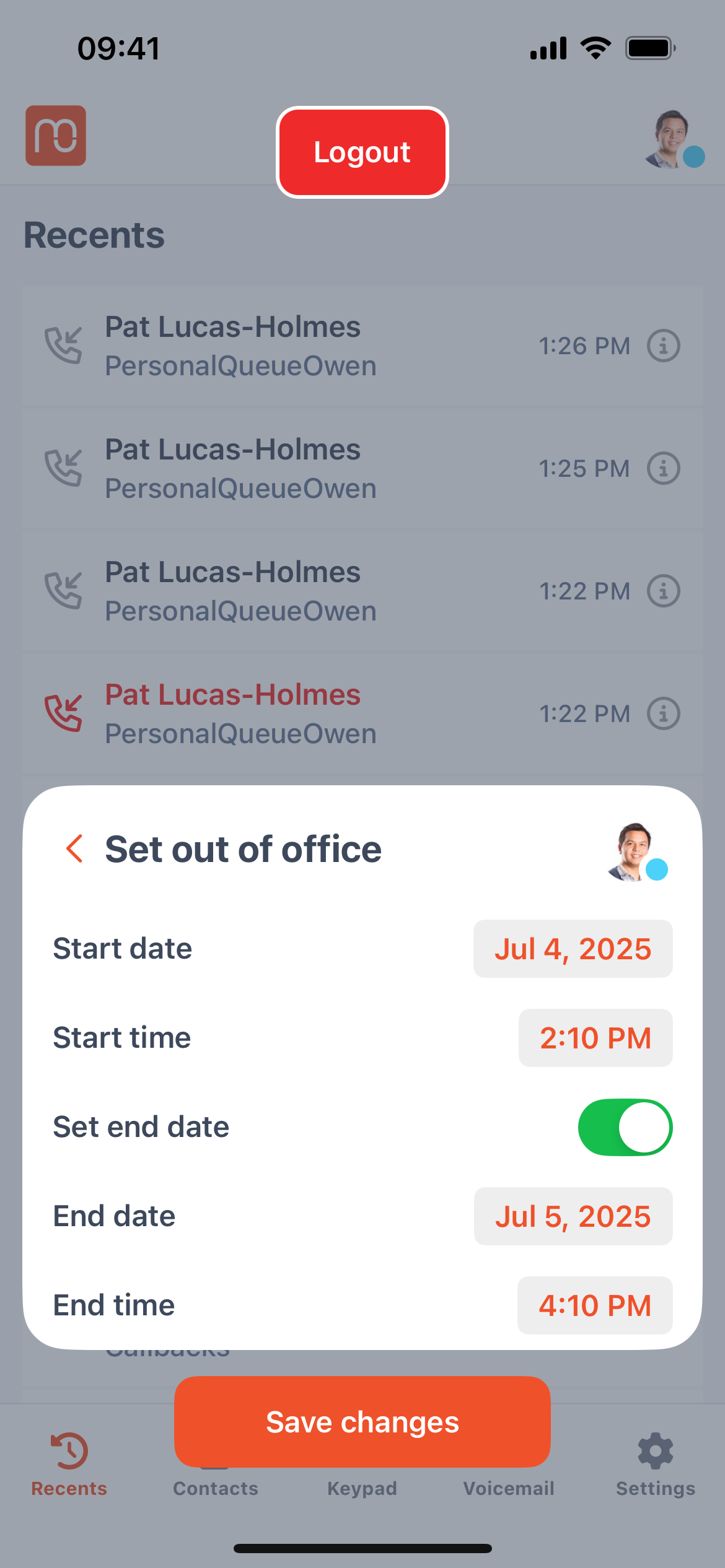
Tip: Setting an Out of Office Status
- To indicate when you'll be out of the office, customize the Start Date and End Date, then Save Changes.
- Once the End Date and Time are reached, your status automatically switches to the status your administrator configured. By default, this is Available, so you are ready to receive incoming interactions again.
2. View All Ongoing and Recent Interactions#
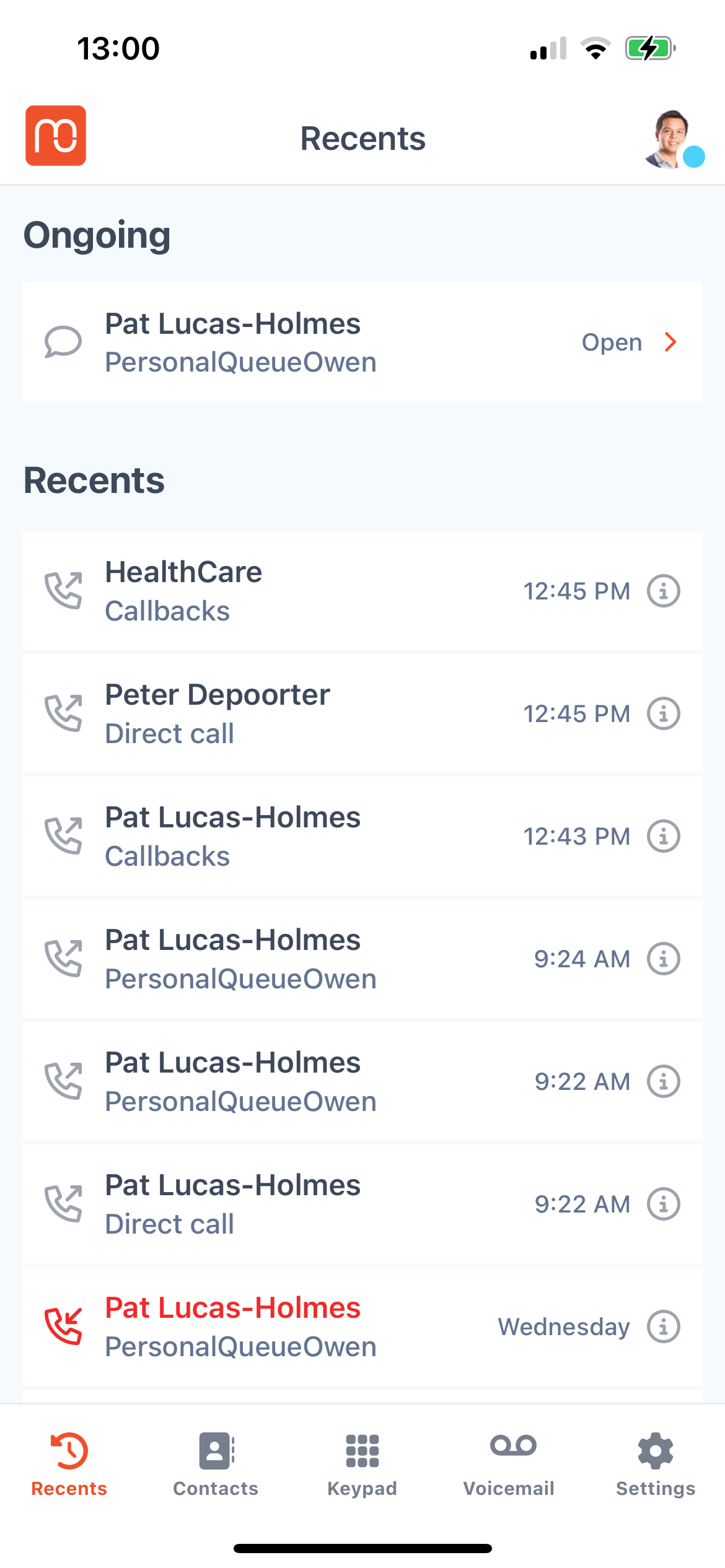
On this page, you can view all your ongoing and recent interactions, including Voice, SMS, WhatsApp and web messages. We make it clear which chats have unread messages, so you can see at a glance where a reply is waiting.
In the Recents page, you can make an Outbound Call. Simply tap on a recent interaction with a caller from the list.
3. Transcripts and Interactions#
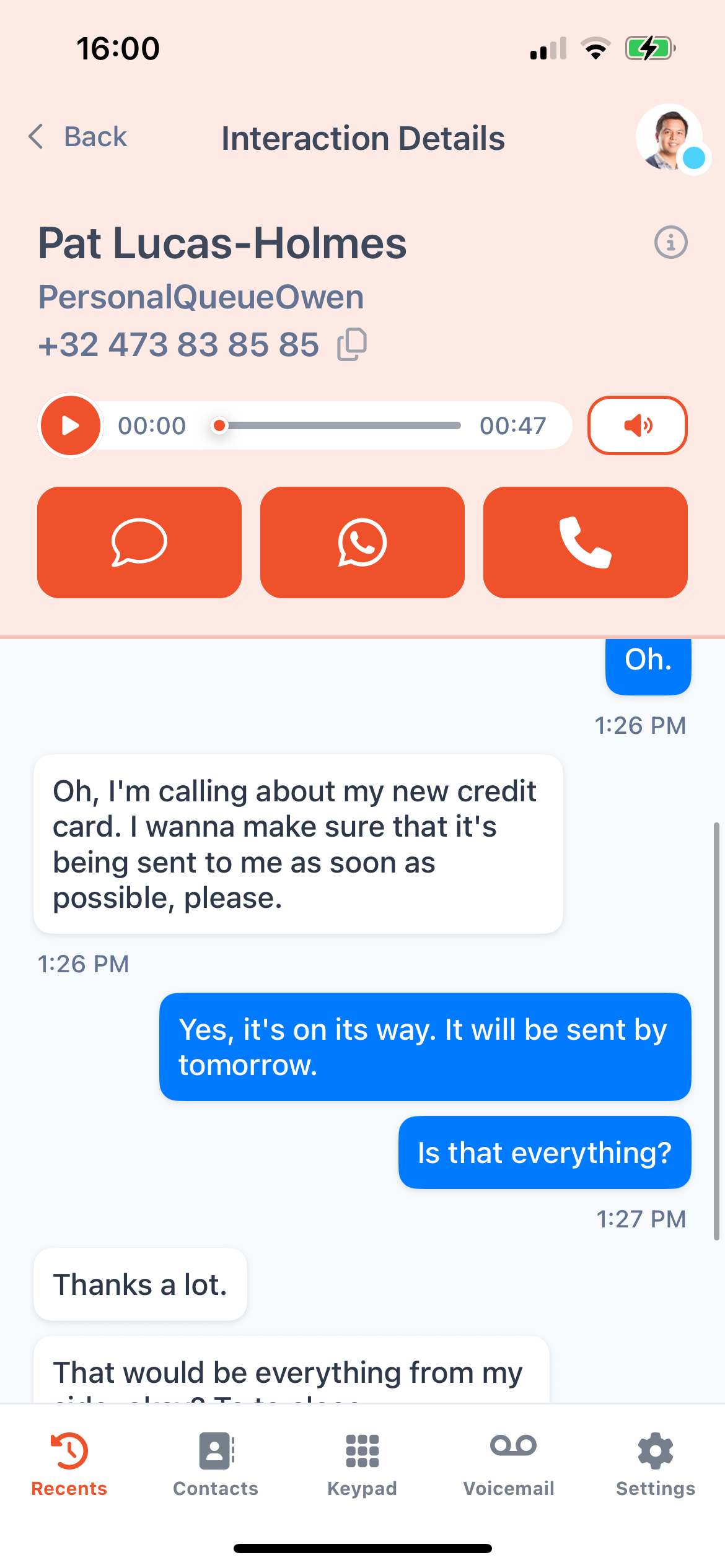
If Recording and Transcription is enabled for your organization, you can review past calls directly within the app.
3.1 How to access a Call Recording and Transcription:#
-
Navigate to your Recents screen.
-
Find the call you want to review.
-
Tap the “Info ℹ” button next to the call. This opens the Interaction Details page, where you can:
- Listen to the call recording
- Read the call transcription
- Read the AI summary of the interaction
Tip: You can also place calls or open SMS or WhatsApp interactions from within the Interaction Details page.
Note: These features must be enabled by your Genesys Cloud administrator for them to be available.