
General
Feature
Updated:January 28, 2026
Voicemail
The Voicemail section in Mobile Office helps you stay on top of missed messages from customers — whether they’re directed to you personally or to a group queue.
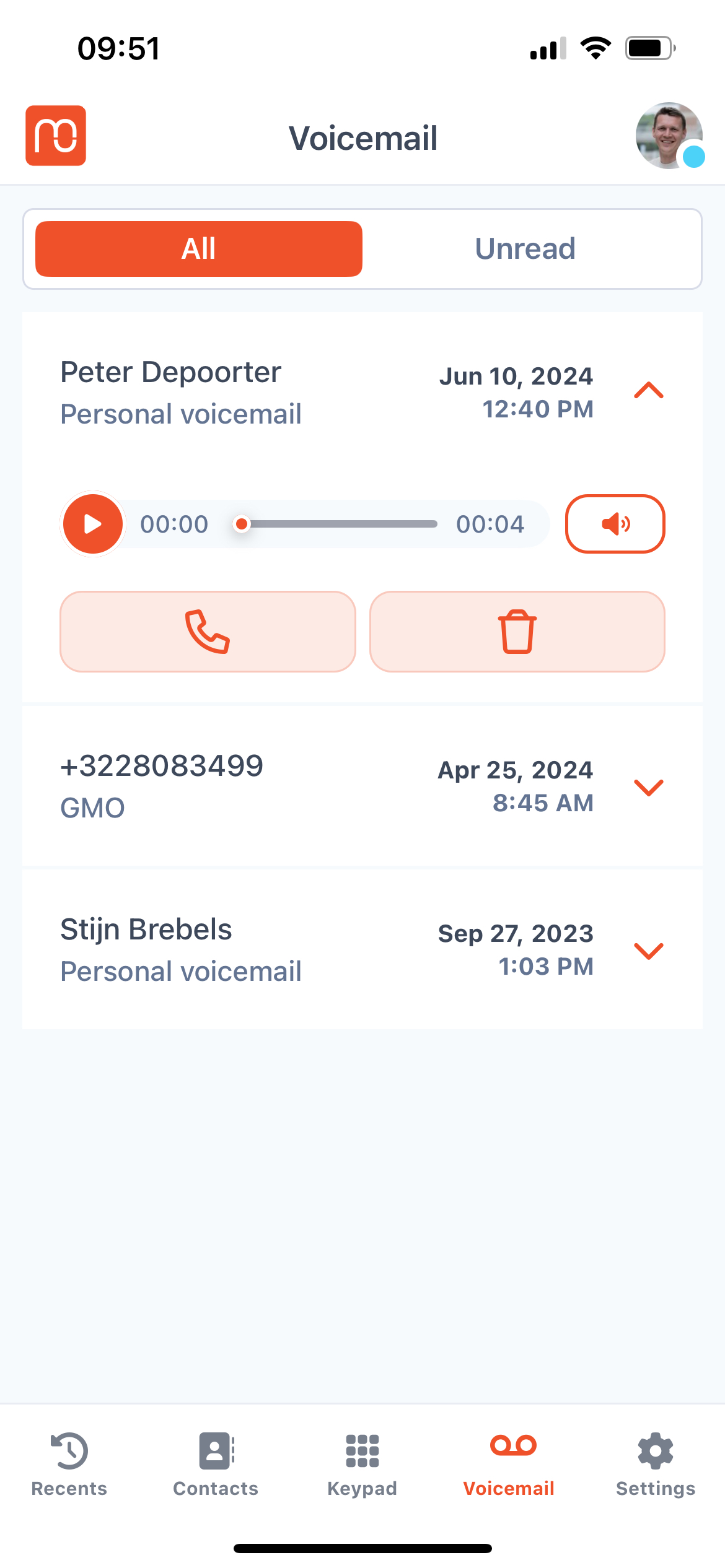
1. Where to find your Voicemail#
- Tap on the Voicemail icon from the main navigation menu.
You’ll see a list of all voicemails, organized into:
- Personal Voicemails – messages left directly for you.
- Group Voicemails – messages sent to a queue or team you're part of.
2. What can you do with your Voicemail#
- Tap a voicemail to play or replay it.
- View caller info (name and number, if available), message time, and duration.
3. Call Back Instantly#
4. Just tap the 📞 Call button next to the message to return the call directly from the app.
Tip: No need to switch screens or search your contact list.
3. Group Voicemail#
If you’re part of a queue or team, group voicemails ensure shared visibility:
-
Any member with access can listen and respond.
-
Help prevent missed opportunities by allowing team-based follow-up.
Tip: Dial *86 for a fast access to your voicemail within the Keypad