
General
Tips
Updated:January 28, 2026
How to choose which audio device is used when taking Mobile Office calls on iOS?
When you receive an incoming voice call through the Mobile Office app, you can select the preferred audio device for the call. This allows you to switch between your phone's speaker, internal microphone, or a connected Bluetooth device like headphones or earbuds.
How to Choose an Audio Device:#
-
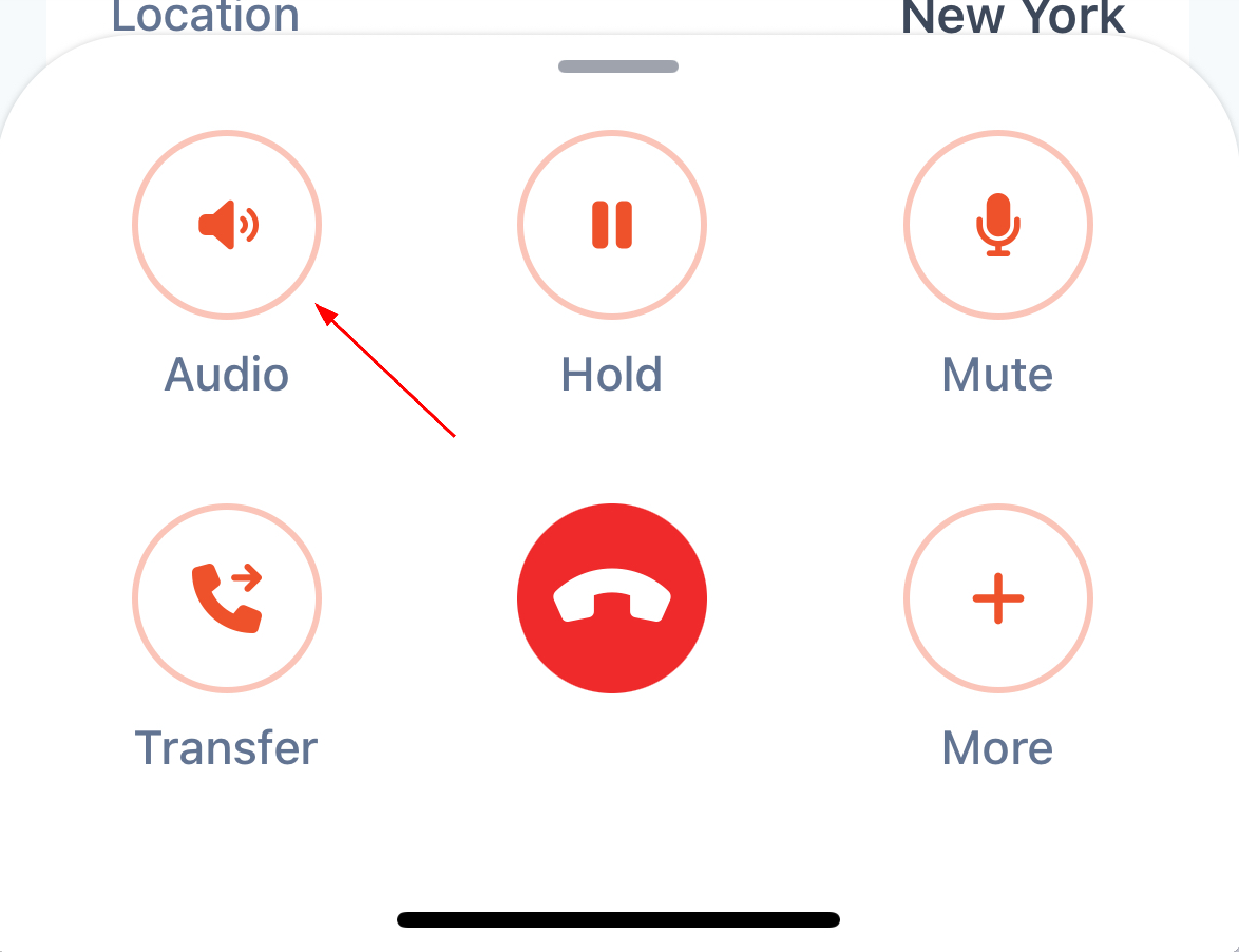
When a call starts or is ringing, tap the audio output icon on the call screen.
-
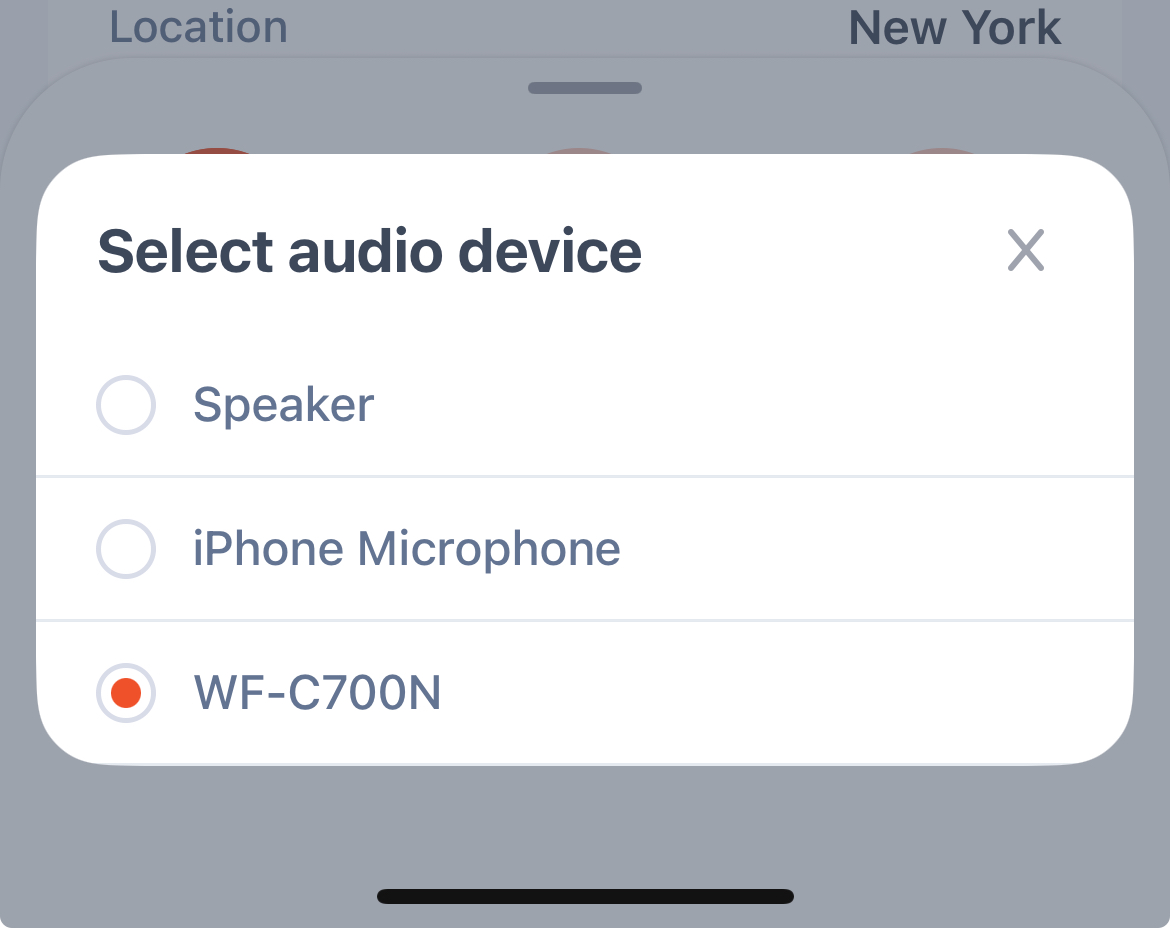
A pop-up will appear with available audio device options.
-
Select from:
- Speaker – Use your phone’s external speaker.
- iPhone Microphone – Use your phone’s internal microphone and earpiece.
- Bluetooth Device (e.g., WF-C700N, Airpods etc) – Select connected Bluetooth headset or earbuds.
-
Once selected, the call will route audio through the chosen device.
Note: Ensure that your bluetooth device is correctly paired and recognized by your Mobile Phone.