
General
Feature
Updated:January 28, 2026
Keypad
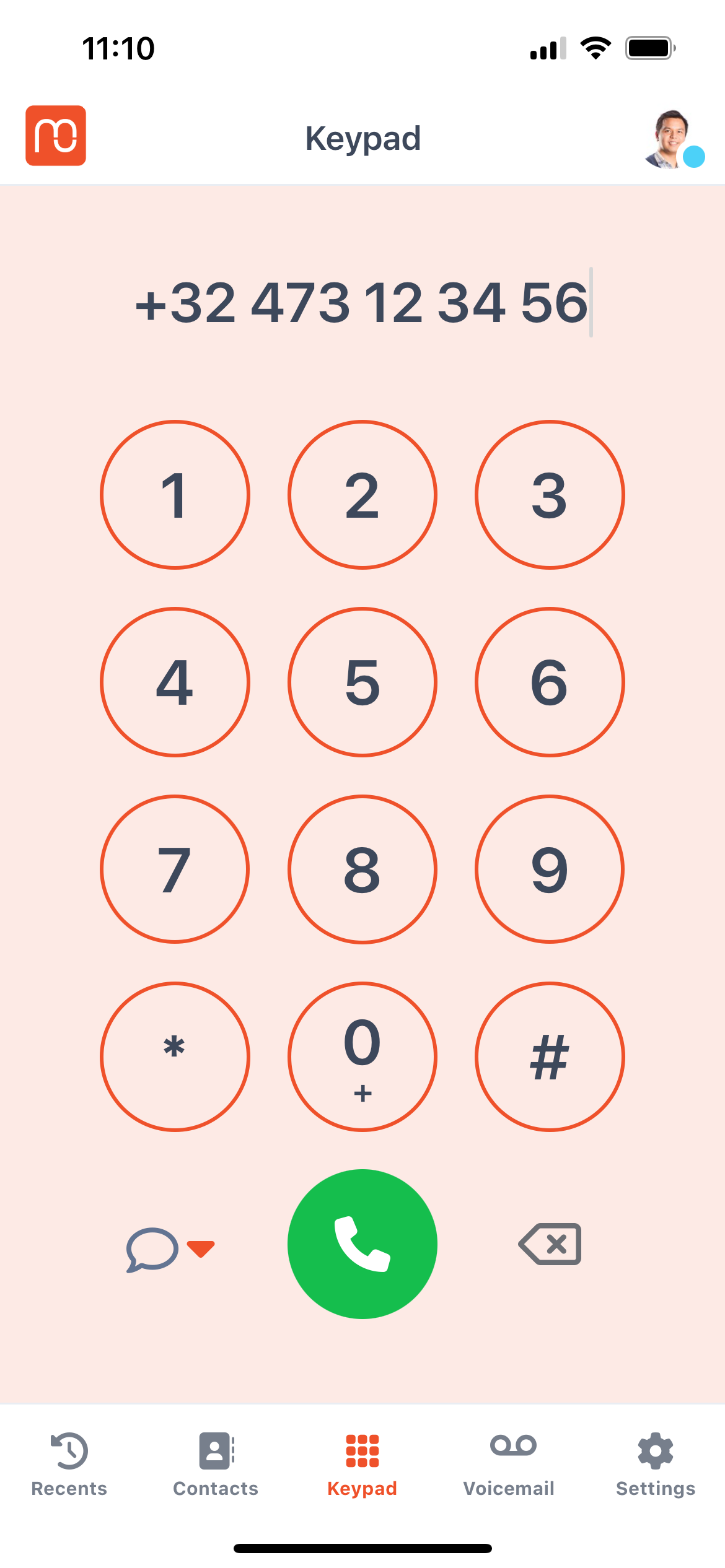
The Keypad in Mobile Office lets you quickly make outbound calls by manually entering a phone number — perfect for cases where a contact isn't saved or listed in your directories.
1. How to make a call#
- Open the Keypad screen.
- Enter the number you want to call.
- Tap the Call button (green phone icon) to start your call.
2. Send a Message (SMS or Whatsapp)#
Once you’ve entered the number:
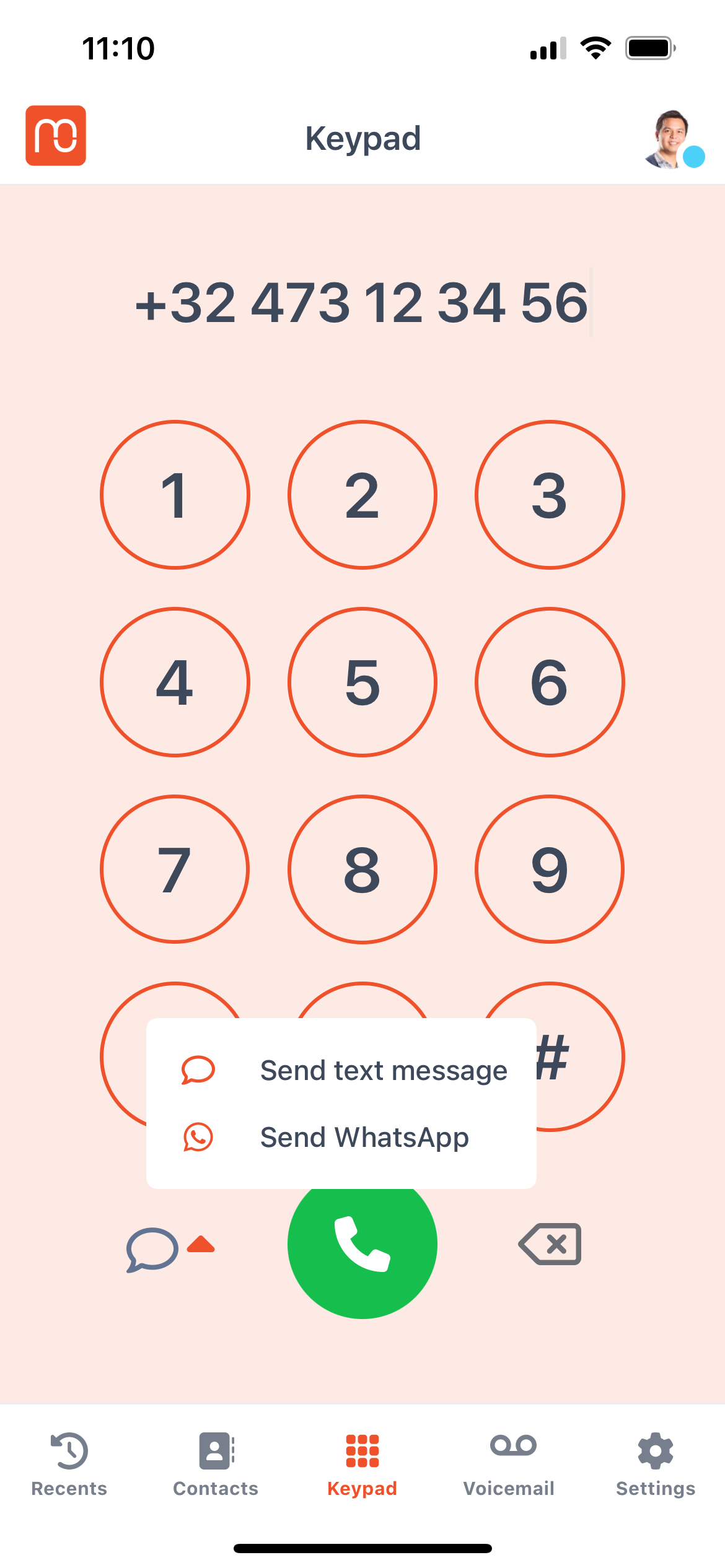
- Tap the Message icon (💬 or WhatsApp icon, depending on configuration).
- Choose SMS or WhatsApp (if both are enabled for your organization)
The messaging screen will open — just type and send your message from there.
Note: The availability of WhatsApp and SMS depends on your organization's configuration and your assigned permissions.
Tips:#
- Before making a call, make sure your default queue is correctly set in the app settings. This defines the number that will be shown to the person you're calling.
- Any number dialed using the keypad is automatically saved under Recents for quick redial.