How to link your purchased subscription to your Mobile One Organization
After your free trial ends, you must purchase a Mobile One license via AWS Marketplace and link it to your Mobile One organization to continue using the app. To do so, follow the steps below:
-
Head over to the Mobile One AWS marketplace listing and buy a subscription. If you have already bought a subscription, head over to "Manage Subscriptions" and select Mobile One.
-
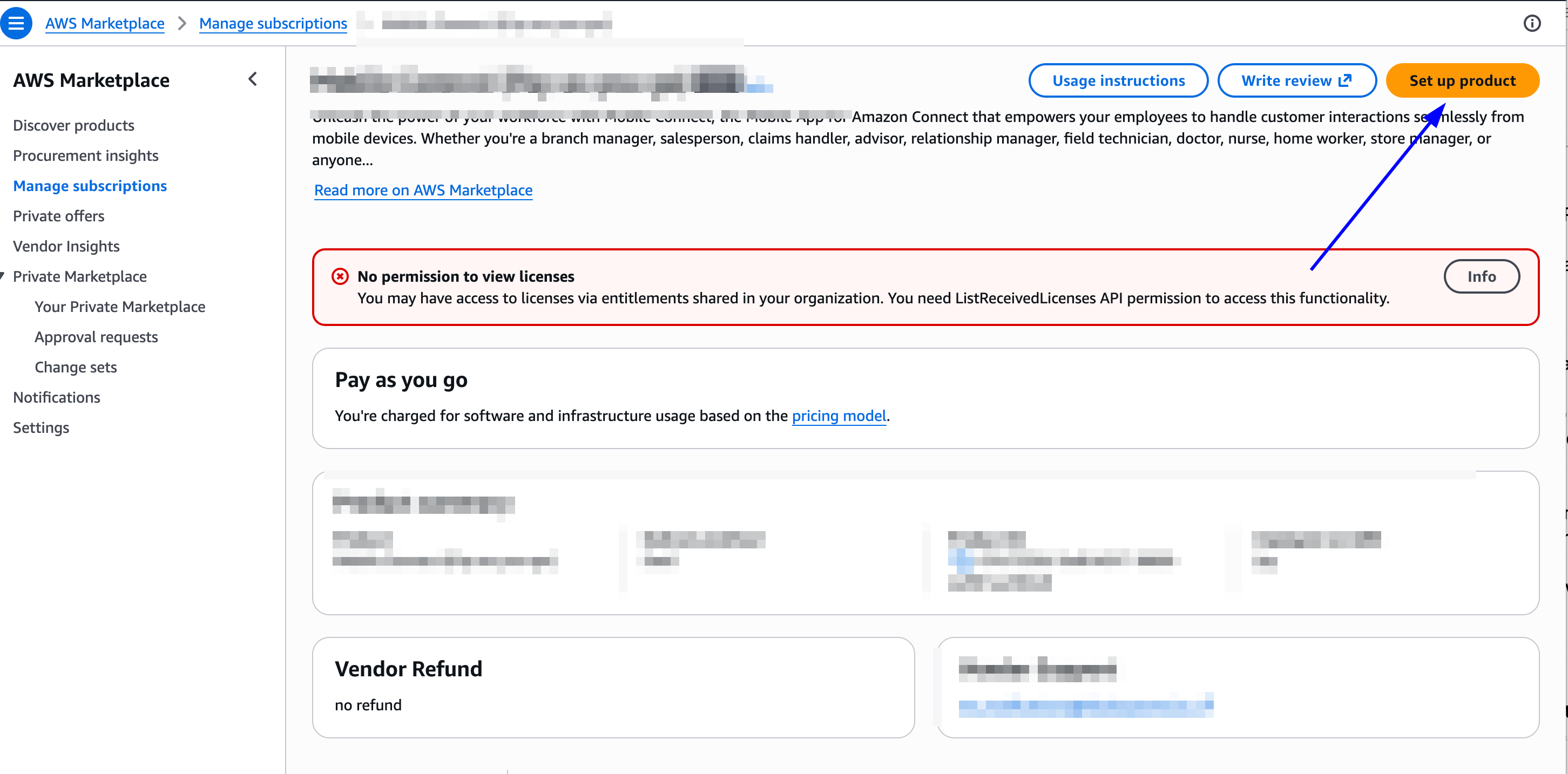
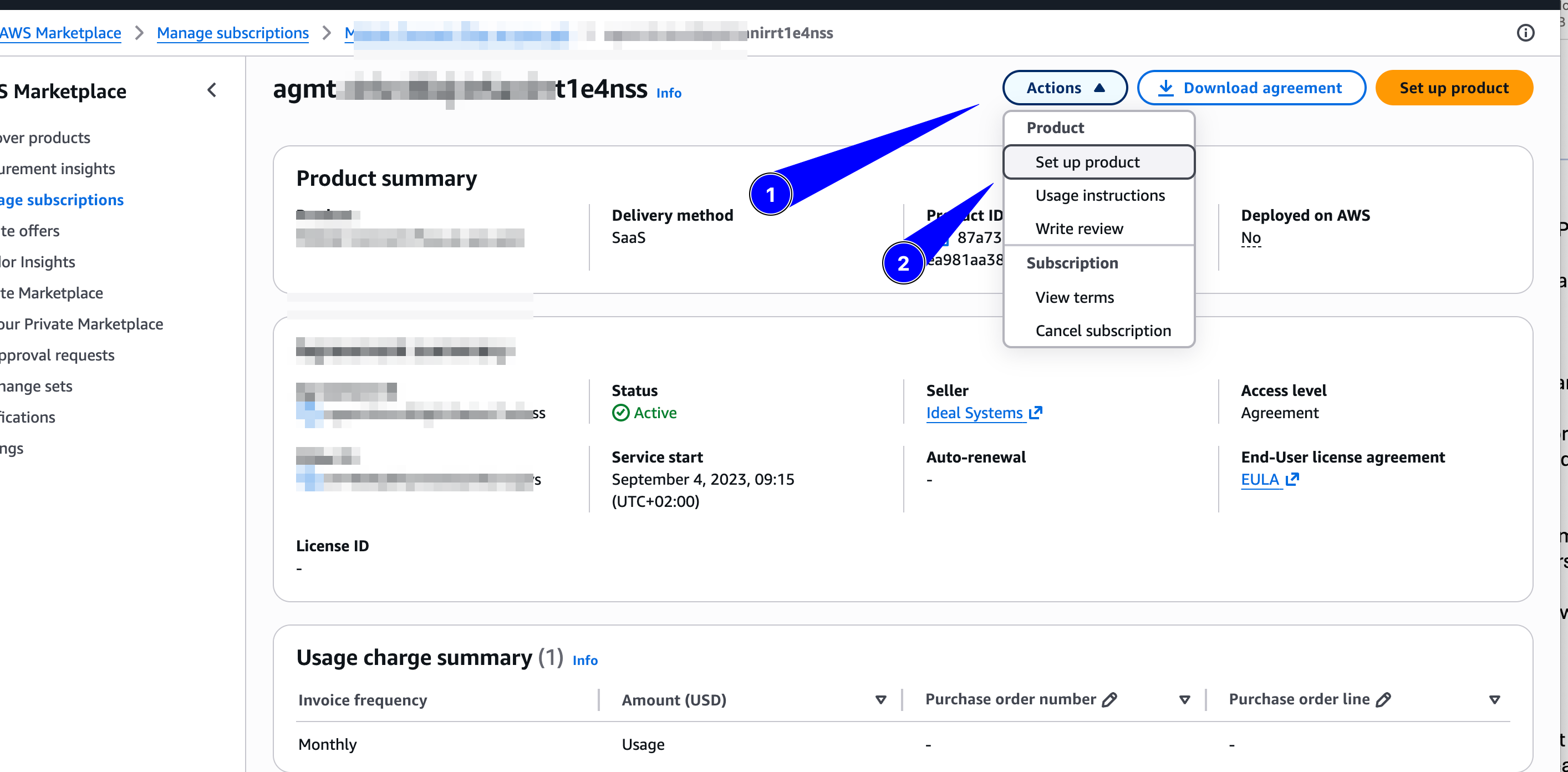
Once you have bought the subscription, navigate to the subscription or agreement and look for the 'Set up product' button.
-
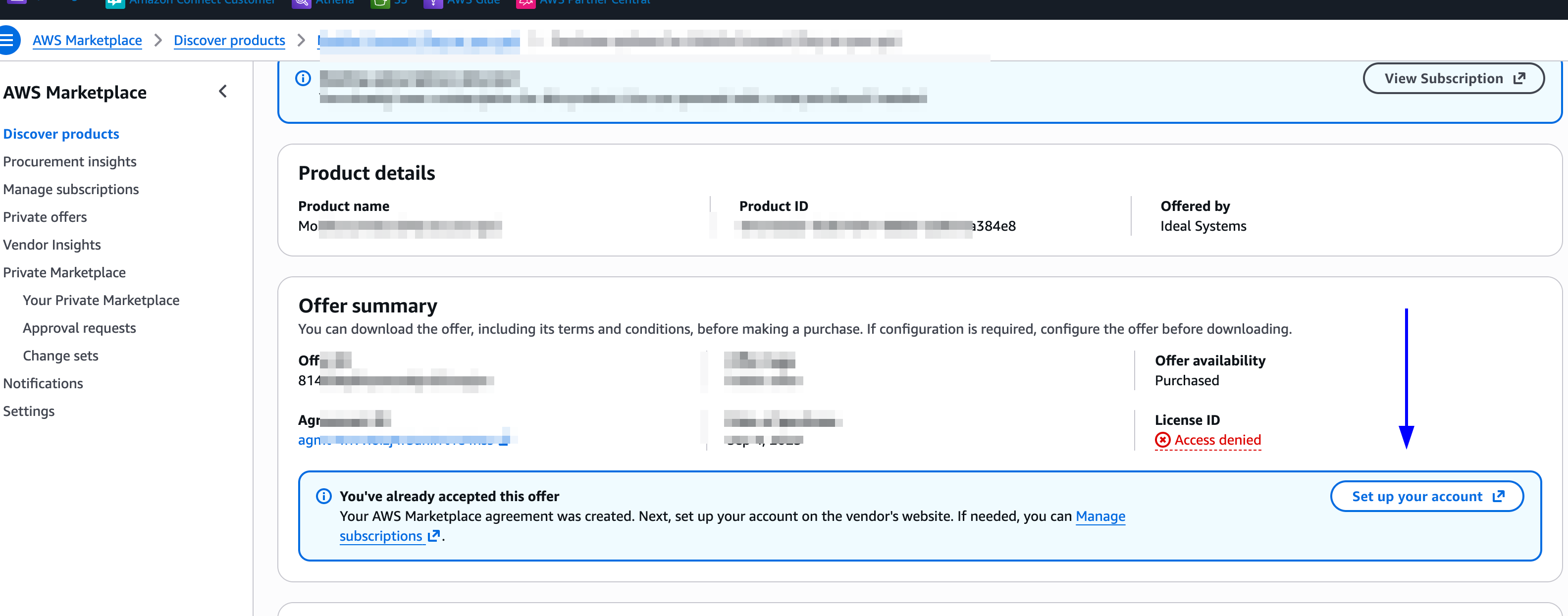
You will be navigated to the "Purchase options" page, where you need to look for the "Set up your account" button.
-
You will be redirected to the Mobile One provisioning, where you will be prompted to login with your Mobile One account via NiCE CXone login. If you do not have a Mobile One organisation yet, you can create one instead.
-
The admin console will show the name of the NiCE CXone organization as well as the name of the Mobile One organization you are linking the subscription to. If these are incorrect, log out, restart from the "Set up your account" button and log in with the correct NiCE account. Contact monesupport@ideal-systems.com if you need additional support.
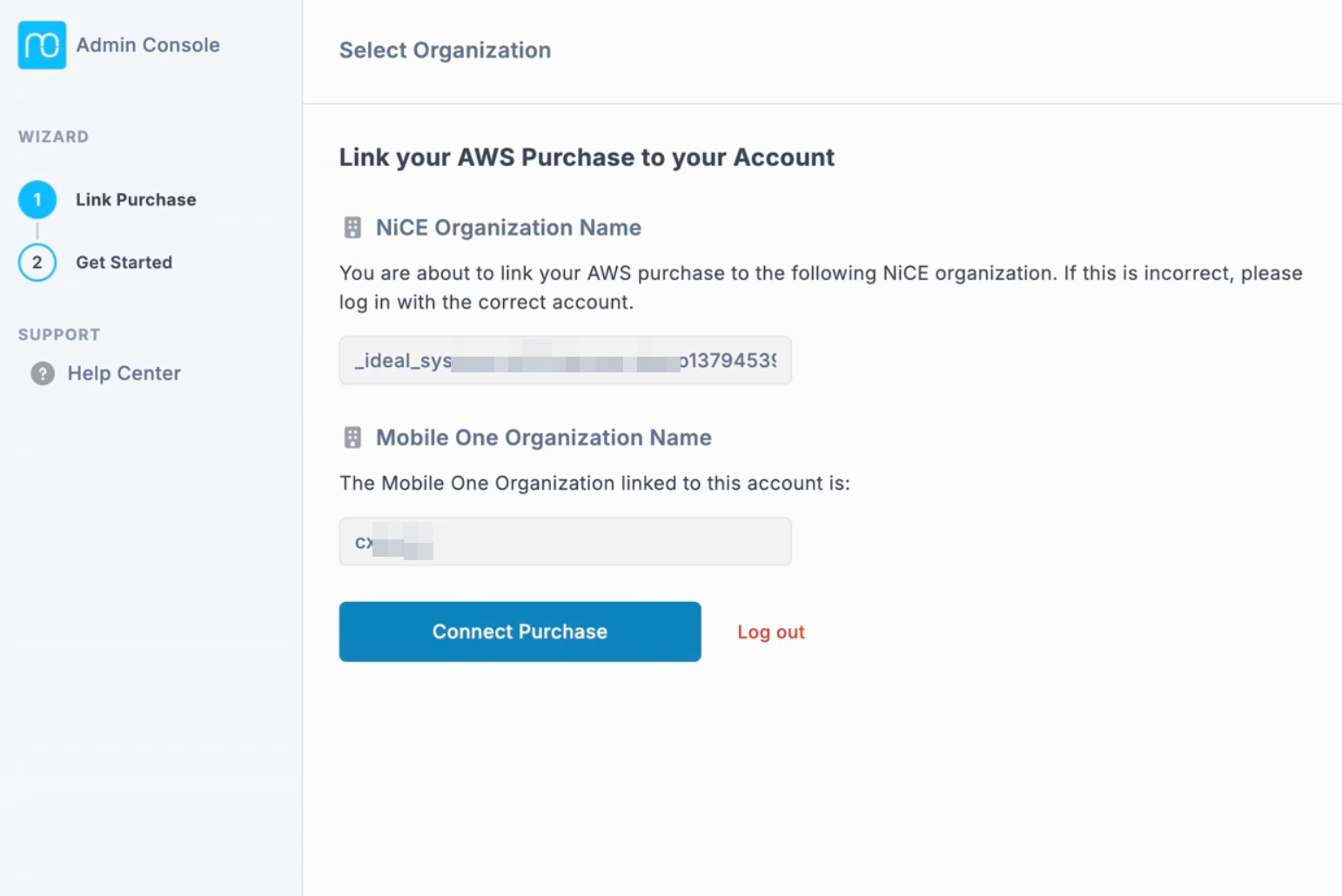
-
Your AWS bought subscription is now linked to your Mobile One organization.