Which Microsoft Dynamics integrations are supported?
Further building upon the integration possibilities between NiCE CXone and Microsoft Dynamics 365 desktop, we offer multiple ways of integrating Mobile One with Microsoft Dynamics 365 in both directions. Please find below an overview of the integration possibilities.
1. CRM popup#
Mobile One -> Microsoft Dynamics Sales App#
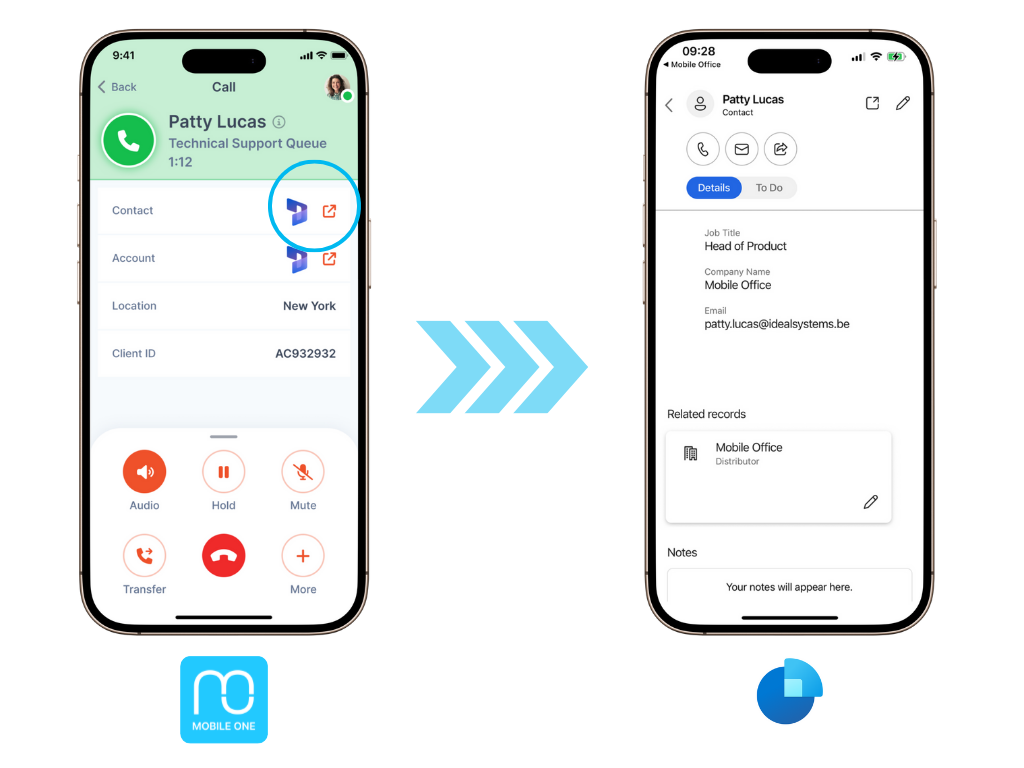
The CRM popup button is a custom button that is activated in Mobile One and that appears for every interaction. When clicking this button during an interaction, your Microsoft Dynamics 365 Sales App will automatically open the desired Object (e.g. contact, account, case, ...) and will allow you to quickly access the customer data.
This Microsoft Dynamics integration is free of charge and included in your Mobile One subscription. This feature requires you to provide the Microsoft Dynamics 365 URL referring to the object as a contact attribute in your Studio script. More information about the deep linking structure and how to refer to objects in the Microsoft Dynamics 365 Mobile App can be found in the Microsoft documentation.
From a Mobile One perspective, you can activate this option under "Data Controls" > "Interaction CRM buttons" in the Mobile One Admin Portal once the contact attribute is available in NiCE CXone.
URL components
Protocol: ms-apps-sales://
Organization URL: xxxx.dynamics.com
App ID: Your app GUID
URL parameters (example)
-
isShortcut=true: Indicates this is a shortcut link
appType=AppModule: - Specifies the application type
restartApp=true: Forces app restart
openApp=true: Opens the application
etn=contact: Entity type name (contact, account, opportunity, etc.)
id=XXXXXXX: Specific record GUID
pagetype=entitylist: Type of page to display
ms-apps-sales://[YOUR_ORG_URL]_[APP_ID]?isShortcut=true&appType=AppModule&restartApp=true&openApp=true&etn=[ENTITY_NAME]&id=[RECORD_GUID]&pagetype=[PAGE_TYPE]
2. Interaction logging#
Mobile One -> Microsoft Dynamics records#
Mobile One is built on top of NiCE CXone. This means that all call data, analytics and recordings are directly available in NiCE CXone. If you want to have call interaction data of Mobile One calls directly in Microsoft Dynamics, we advise to set up a back-end integration between NiCE CXone and Microsoft Dynamics that syncs the data. This way, your Microsoft Dynamics <> NiCE CXone data stream will automatically work for both your desktop usage and Mobile One usage.
Be aware that this part of the guide (Interaction logging) assumes you have working knowledge of both NiCE CXone and Microsoft Dynamics APIs. The integration between Mobile One, NiCE CXone, and Microsoft Dynamics requires independent configuration of both platforms. This article is intended as a general guide and does not include step-by-step configuration instructions. You or your technical team will need to implement and adapt the integration based on your specific environment and requirements.
3. Click-to-dial#
Microsoft Dynamics Sales App -> Mobile One#
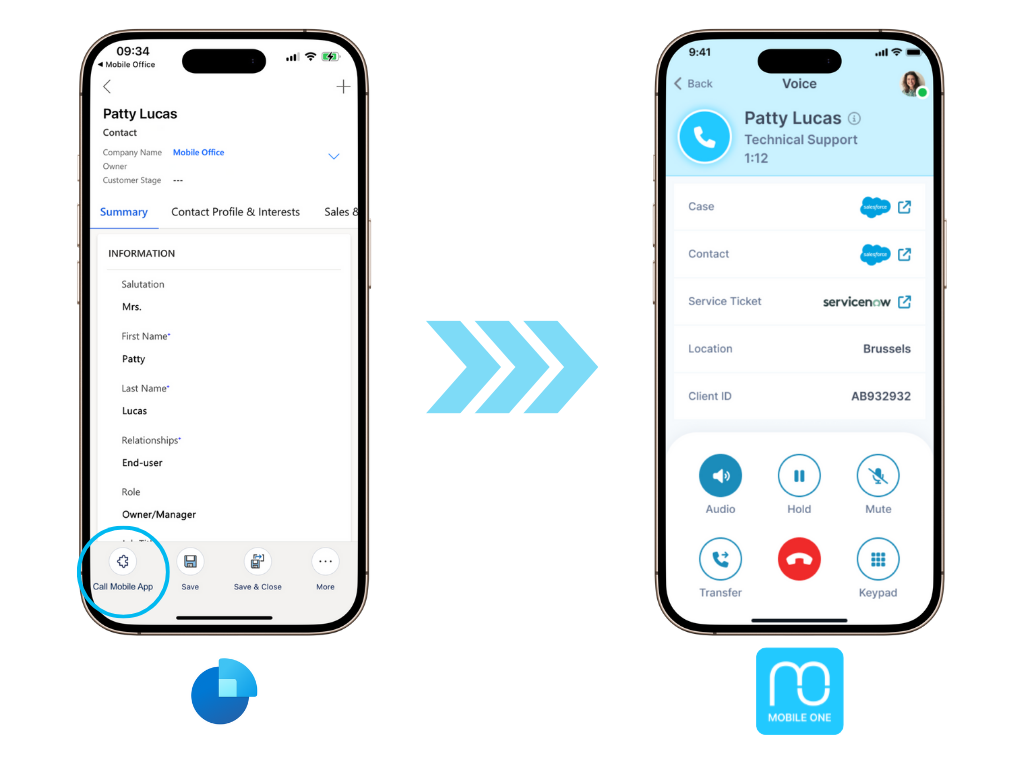
Since version 1.1.2, users are able to start calls in Mobile One directly from their CRM. The click-to-dial button is a custom button that your organization can add to your Microsoft Dynamics Sales App. When a user is viewing contact information in the Microsoft Dynamics Sales App, the custom button will provide the user the option to dial out via Mobile One.
You can set this up with our general click-to-dial setup, which works from any CRM. You can find the steps in the document "General Click to Dial setup".
This Microsoft Dynamics integration is free of charge and included in your Mobile One subscription.