
Installation guide
Discover how to start your 30-day free trial and install Mobile Office.
Activating your 30 Day Free Trial
Thanks for your interest in Mobile Office! Mobile Office is a premium AppFoundry app which is free-trial enabled. This means that with a couple of clicks and maximum 10 minutes of your time, you can start testing the app yourself! If you are an end-user, please contact your Genesys Cloud admin for this setup.
1. Open the Mobile Office page in Appfoundry
As a Genesys Cloud organization admin, navigate to one of the Mobile Office AppFoundry pages of Mobile Office depending on the type of underlying Genesys Cloud licenses your users have. If you have both type of licenses in your org which both have a need for a mobile app, you can also install both.
- Mobile Office for Genesys Cloud CX 1-3
- Mobile Office for Genesys Cloud Communicate
Click the 'free trial' button at the top right of the page. Please make sure you are logged in as an admin to see this button.
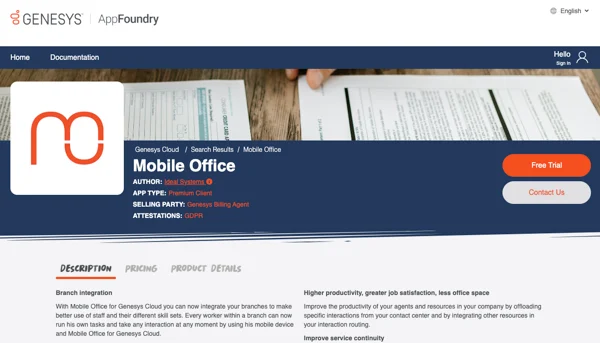
Error? If you get a reseller error message after clicking the free trial button and you are a reseller or you have licensed your Genesys Cloud through a reseller, please advice the reseller to go to the following page: https://appfoundry.genesys.com/docs/resellers and whitelist Mobile Office as a AppFoundry application. Once the reseller has enabled Mobile Office for you, you will be able to start the free trial.
2. Installation Wizard
An installation wizard will be presented in AppFoundry. Run through the different steps proposed, including accepting the Terms and conditions.
3. Activate the integration
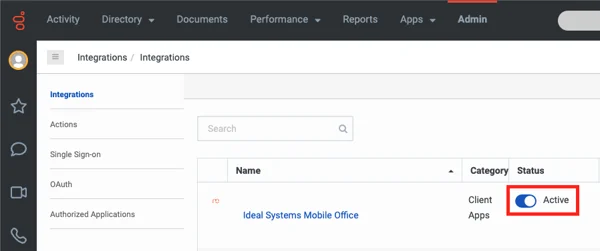
Next, navigate to your Genesys cloud - admin page. In the 'integrations' section, Mobile Office should appear. Make sure it is activated - and if not, move the 'active' slider.
4. Refresh Genesys Cloud
Refresh your browser window. Next, the apps menu should appear in your Genesys Cloud organization. Inside the app dropdown, you can Ideal Systems Mobile Office. Click the link. If the app menu does not appear, try logging out/logging into Genesys Cloud again.
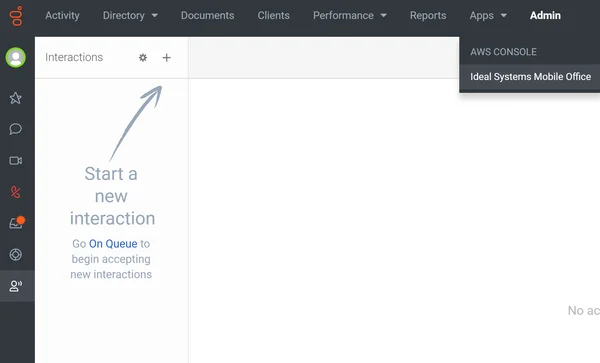
Error? if the link or app dropdown doesn't appear, navigate as an alternative to the following url via your standard browser and run through the wizard : https://provisioning.mobileofficecloud.com/
5. Wizard
Step 4 will launch an installation wizard within your Genesys Cloud organization. Please follow these steps and approve the OAuth Clients in Genesys Cloud.
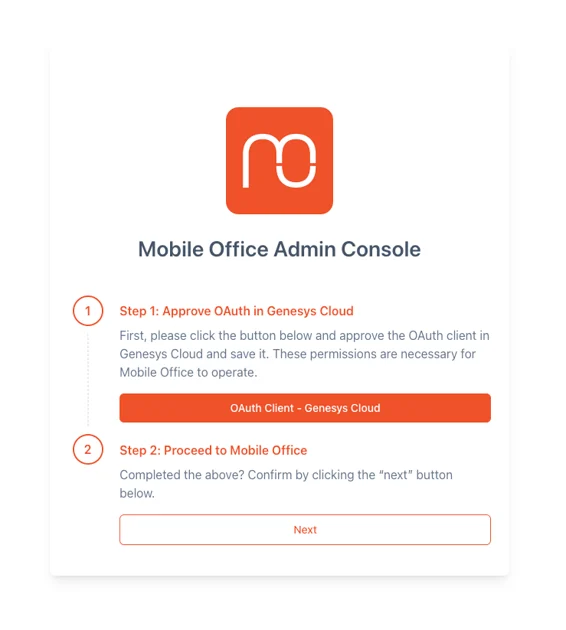
Error? In case you do not see this screen and receive an error "user is not authorized to use provisioning tool" instead, you have insufficient permissions in Genesys Cloud for this operation. To execute this step, please make sure your user has one of the following permissions assigned: "Mo_Admin", "Admin" or "Master Admin".
Screen not loading (infinite spinner)? This is likely a firewall issue. You should open up the following domain: "*.mobileofficecloud.com" in order for Mobile Office to work with your firewall setup.
6. Setting permissions
Congrats, you and your Genesys Cloud users are now able to use Mobile Office. The final step is to assign permissions to your users in order for them to be able to log in to Mobile Office. Go to admin → Roles / Permissions.
Please make sure that you assign the correct permissions/roles based on the underlying Genesys Cloud license as these will determine the billing amount after the free trial.
If your users have a Genesys Cloud CX 1-3 license, we automatically create the role "MOUser" for you. Assign this role to your mobile users. Alternatively, you can assign the permission "integration:mobileOfficeApps:view" to a role of your choice.
If your users have a Genesys Cloud Communicate license, we automatically create the role "MOCommunicateUser" for you. Assign this role to your mobile users. Alternatively, you can assign the permission "integration:mobileOfficeCommunicate:view" to a role of your choice.
Any user who has the correct 'Genesys Cloud' permission, can now login to the mobile application using their Genesys Cloud credentials (or via SSO) after downloading the Mobile Office App from the iOS app store or Google Play Store.
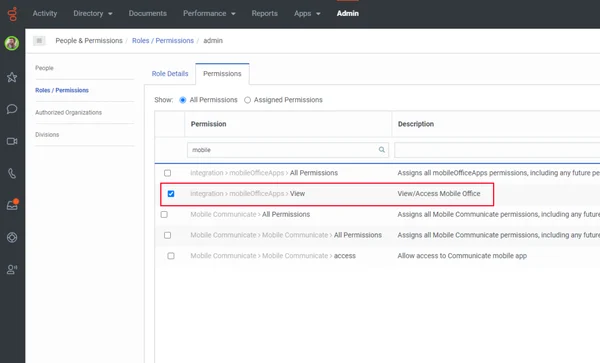
After the free trial, you will only be billed based on the permissions of either products that you assign to your users (see step 6). Billing goes directly via your Genesys billing. Contact your local Genesys sales representative or sales@idealsystems.be for more information about our annual pre-pay offering and volume discounts.
7. Verify queue timeout settings
It's important to set the Queue Timeout settings of the queues that your mobile users are using high enough. We recommend setting this to at least 20 seconds so mobile users have enough time to take a call before it gets served to another user. You can do this in the queue settings.
8. Disable Persistent connection & Placing calls with other app
Please make sure to correctly configure the following settings in Genesys Cloud to ensure the audio correctly comes through:
- Disable "Persistent Connection" (admin -> phone management)
- Disable "Placing calls with other app" (calls -> settings -> phone settings)
If one of these options are not disabled, you risk not having the audio stream on Mobile Office.
9. Enable WebRTC Recovery in Genesys and Mobile Office
Prevent call drops during brief network changes by configuring Mobile Office and Genesys to maintain active call continuity across network switches. Minimum application version of 12.3.0 or later required.
Here's how to configure: Ensure calls don't drop when network changes or drops momentarily
10. One last thing: Do you have a firewall?
In case your organization has a firewall configured and Mobile Office (the app and admin page) doesn't work, you should open up the following domains:
- *.idealsystemscloud.com (help center)
- *.idealsystemscloud.be (click-to-dial Salesforce, legal docs)
- *.mobileofficecloud.com (application back-end)
More info on the firewall settings can be found in this article.