
Getting Started Guide
Learn how to start your free trial and initial setup
Activating your Free Trial
Time required for setup: 5 minutes
Permission rights required: Admin in NiCE CXone
Thanks for your interest in Mobile One for NICE CXone! The below steps outline in detail how you can set up your organization and quickly get started with Mobile One.
1. Start free trial
First of all, create an organization and activate your free trial
1) Navigate to: https://provisioning.mobileonecloud.com/
2) Click "Log in with NiCE" and login with your NICE CXone credentials.
Important: in order to successfully login, you need the have the standard "Administrator" role in NiCE or a custom created "Mobile One Admin" role assigned to your user in NICE. For the latter, you can simply create a role with the name "Mobile One Admin" (including the permissions "role management:view" and "employees:view") and assign that newly created role as a secondary role to your user via employees -> security -> secondary roles.
3) After successful login with your account, you will be able to start your free trial
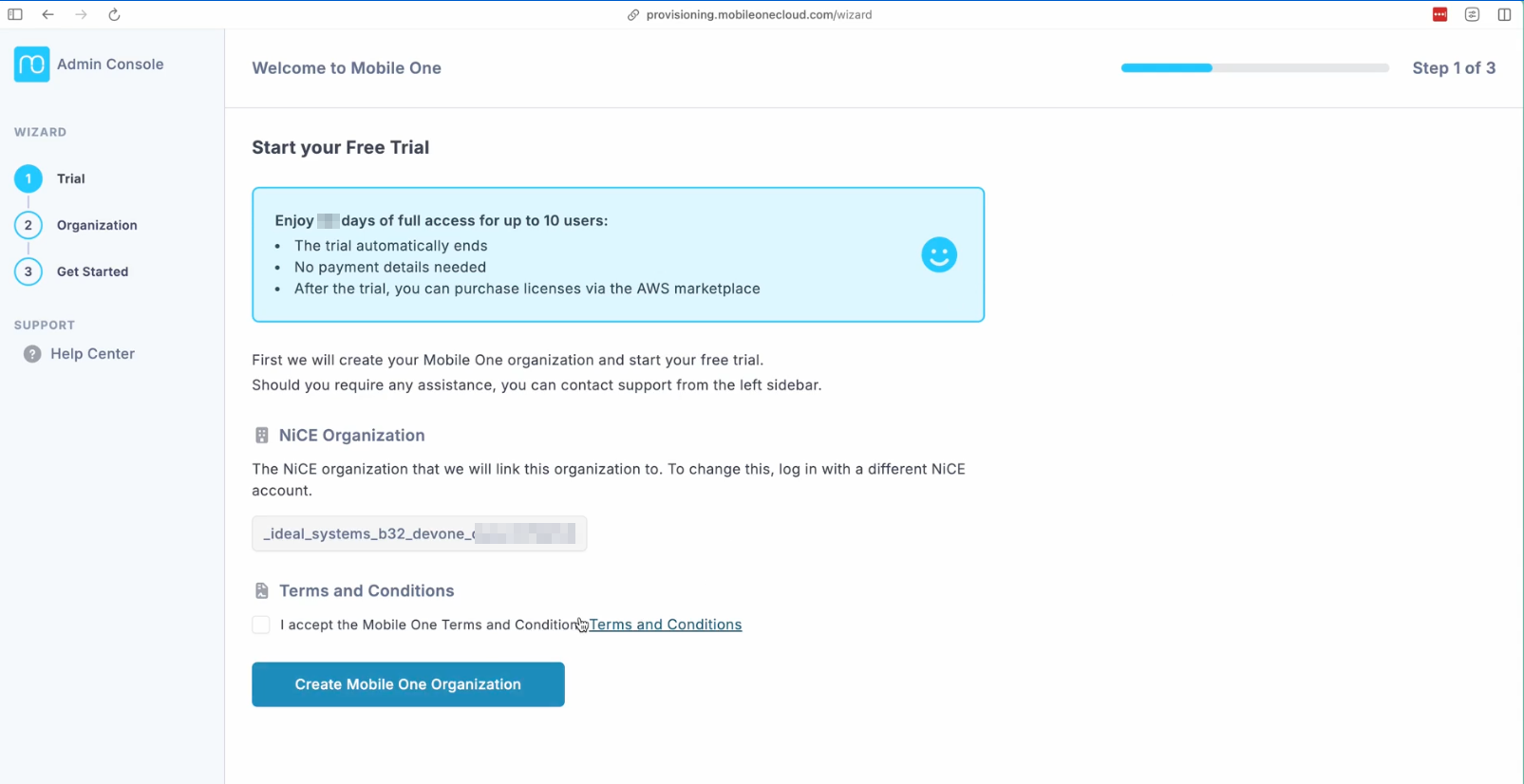
2. Create organization
Once your trial has started, you can create an organization.
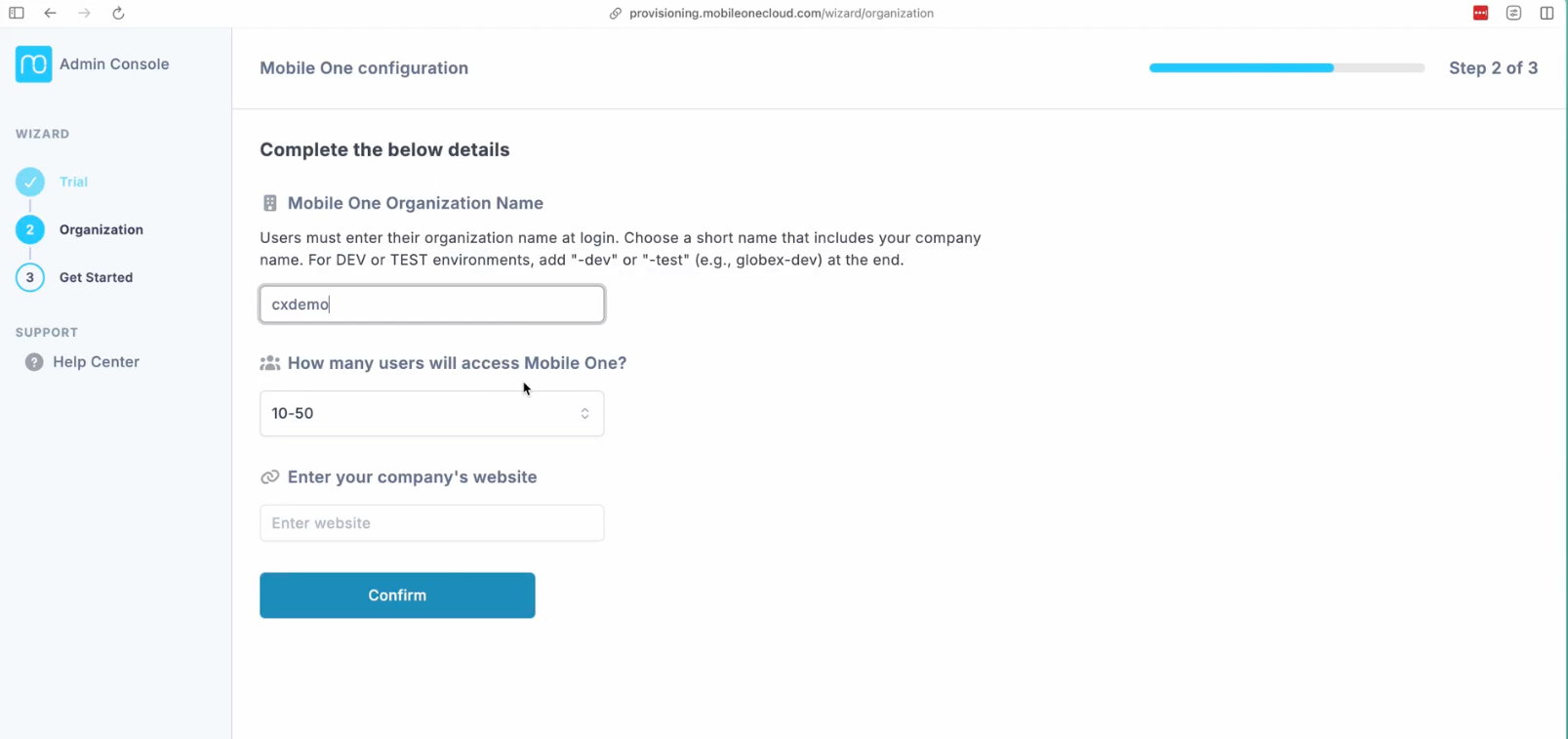
1) Enter organization name: this will organization name will be requested upon the first login of every user in the mobile app.
2) Enter an estimation of the amount of users you are planning to onboard on the mobile app and enter your company website.
3. Application login
Your setup is now done. You and users of your organization can now download the app from the iOS app store or Android play store.
iOS: https://apps.apple.com/be/app/mobile-one-for-nice-cxone/id6746488492
Android: https://play.google.com/store/apps/details?id=be.idealsystems.mcx
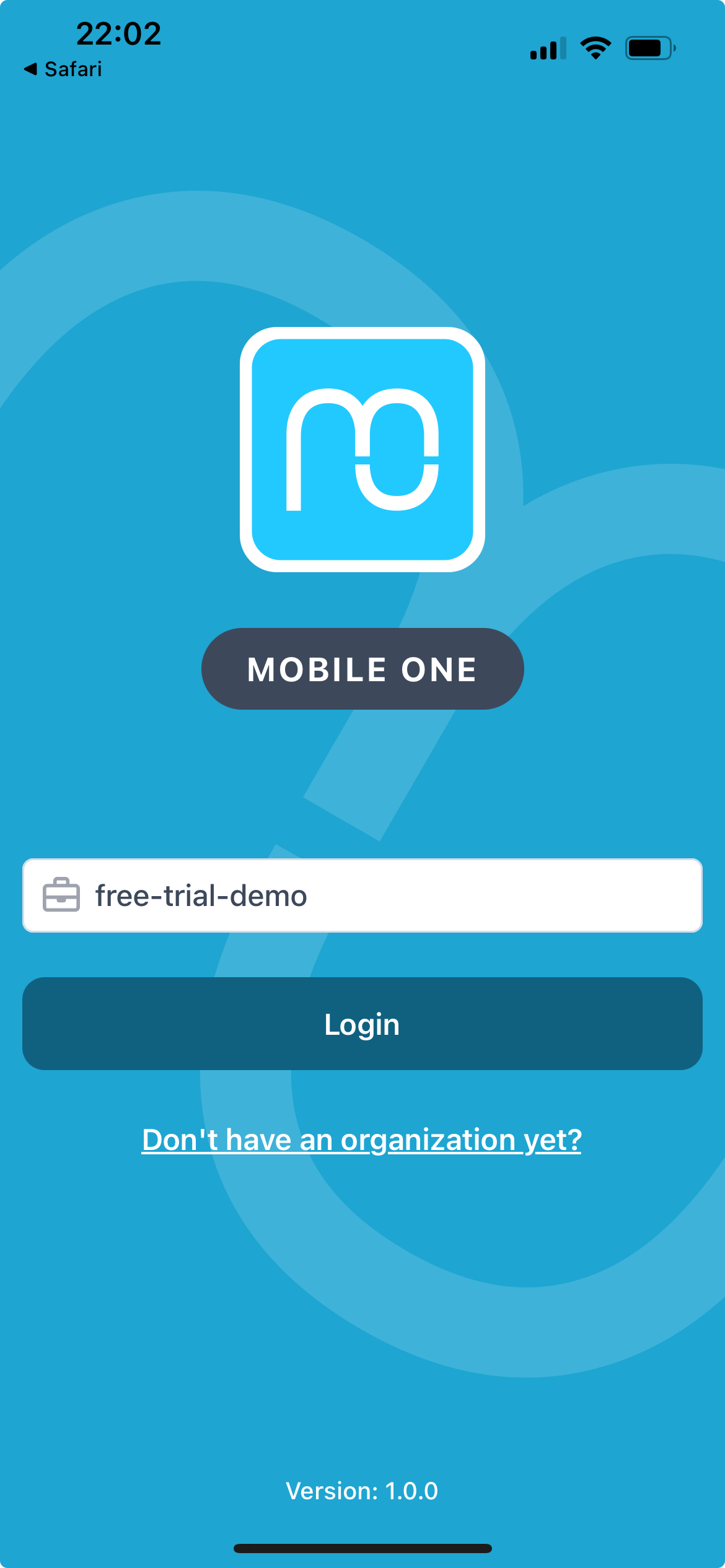
To log in, enter the name of the organization you created (see step 2) and click "log in". This will redirect you to the NICE login page. Once the user has entered their NICE credentials, they will have access to the Mobile App.
Mobile One currently supports voice, SMS and queued voicemails as interaction types.
4. Configuration
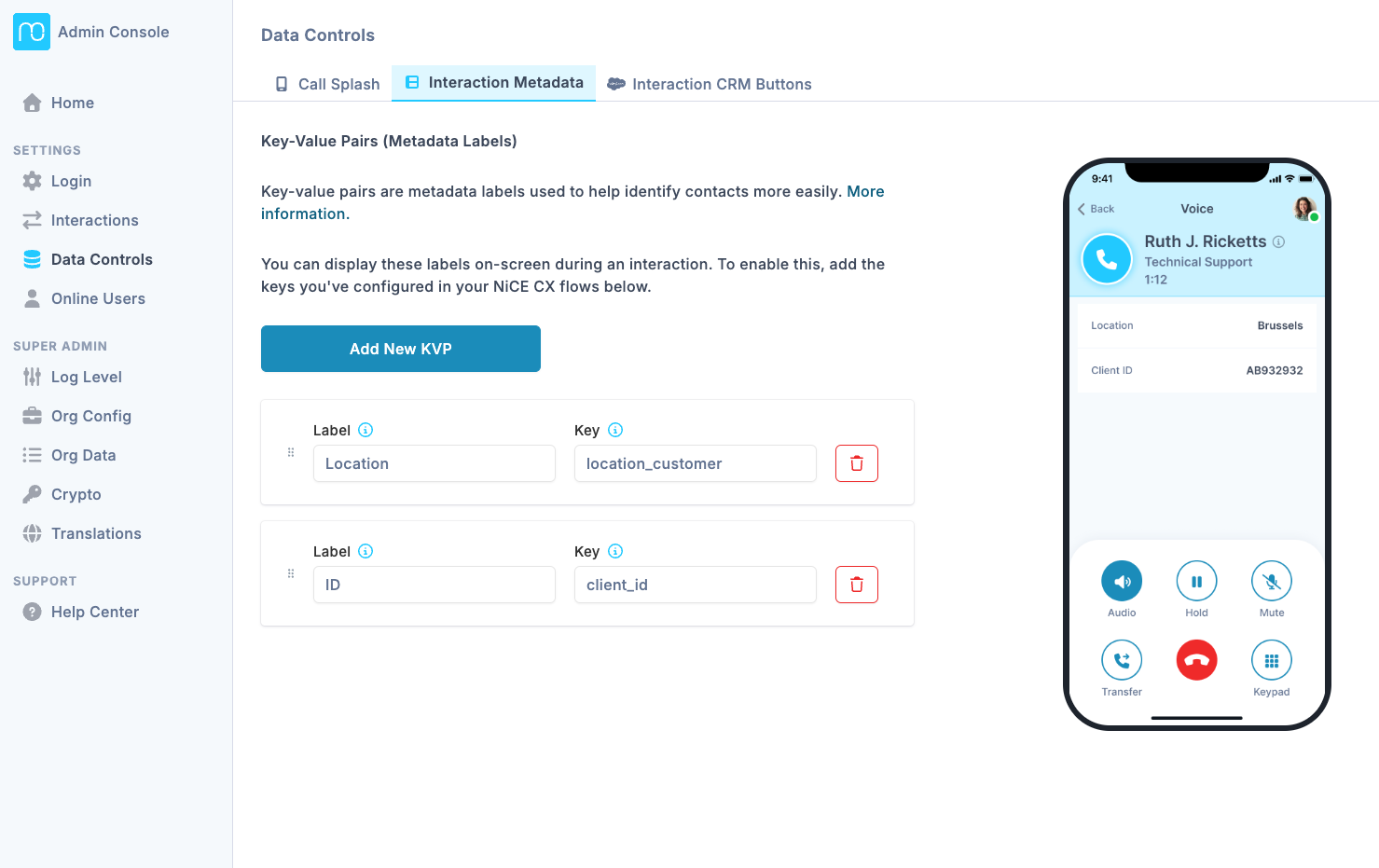
We offer some configuration options allowing you to determine some of the behavior of the mobile app. If you'd like to change these configurations, navigate to the admin console and login as a NICE admin.
5. One last thing: Do you have a firewall?
In case your organization has a firewall configured and Mobile One (the app and admin page) doesn't work, you should open up the following domains:
- *.idealsystemscloud.com (help center)
- *.idealsystemscloud.be (click-to-dial Salesforce, legal docs)
- *.mobileonecloud.com(application back-end)
More info on the firewall settings can be found in this article.
6. After your free trial: purchasing licenses and linking your subscription
Once you are convinced about Mobile One and want to purchase licenses, head over to AWS Marketplace to purchase a subscription. Instructions on how to link your AWS purchase to your Mobile One organization can be found here.
Issues during setup?
If you encounter any issues during the setup, please contact us at monesupport@idealsystems.be and we'll assist you further.